How to Merge PDF Files on a Mac (Free, No Software)
Combine multiple PDFs into one — without buying Acrobat. Two solid options: the built-in Mac Preview, or pdfty in the browser. 30 seconds either way.
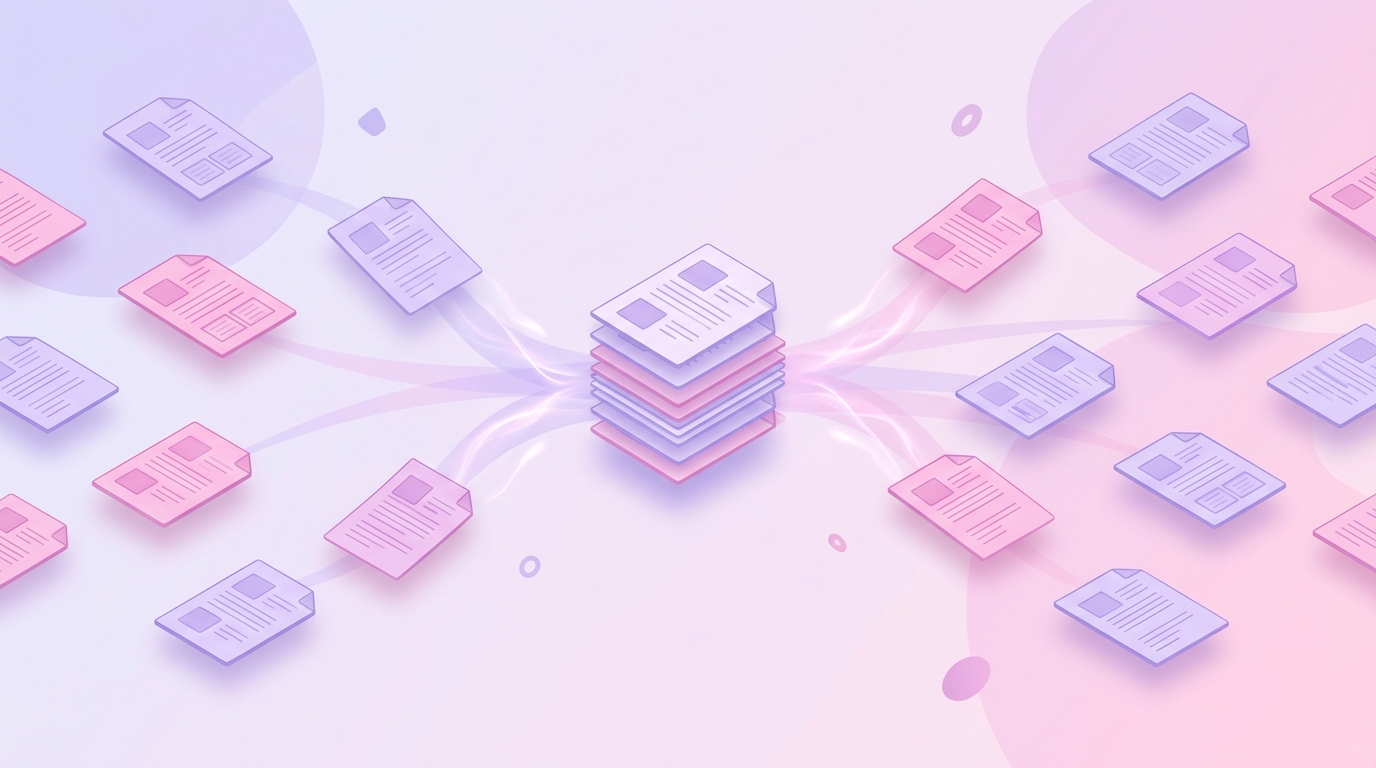
You've got a bunch of PDFs — a contract, a few scanned receipts, a research report — and you need them as one file to email or upload. On a Mac you have two good ways to do this, both free, both take about half a minute. Here's both.
Option 1 — Mac Preview (offline, built-in)
Preview ships on every Mac. You probably already use it to open PDFs. It also merges them, which most people don't know.
Open the first PDF in Preview
Double-click any of your PDFs — that's what becomes the starting document, and all others will get added to it.
Show the sidebar (Thumbnails view)
Top menu: View → Thumbnails (or ⌥⌘2). You'll see a column of page previews on the left.
Drag the other PDFs into the sidebar
Open Finder, grab the other PDF files, drop them into the thumbnail sidebar. Each file's pages appear right after the existing pages. Drag them around to reorder.
Export as a new PDF
Top menu: File → Export as PDF → pick a name → Save. (Important: use Export, not Save. Save modifies the original.)
Done — that's your merged file
The new PDF has every page from every input, in the order you set. Original files are untouched.
Why Preview is great: nothing leaves your computer. No upload, no server, no internet needed. Truly offline.
Where Preview gets clunky:
- Reordering 20+ files in a thumbnail sidebar is fiddly.
- No batch mode — you reorder one drag at a time.
- Adding/removing pages from a multi-page upload is slow.
Option 2 — pdfty in the browser (online, visual reorder)
If you have a bunch of files or you want a cleaner reorder experience:
Open the merge tool
Go to pdfty.com/tools/merge in any browser.
Drop all the PDFs at once
Select every file in Finder and drag them onto the lavender box. They upload in parallel — even 20 files take a couple of seconds total.
Drag to reorder visually
Each file shows as a card. Drag the cards into the order you want them in the final PDF. Remove unwanted ones with the X.
Hit Merge
Server combines them. Usually 2-5 seconds.
Download the combined file
One PDF with every page from every input. Original files stay on your Mac, untouched.
Which one should you actually pick?
| Situation | Preview wins | pdfty wins |
|---|---|---|
| 2-5 files, simple order | ✓ no upload needed | — |
| 10+ files, complex reorder | — | ✓ visual cards beat sidebar drag |
| Files have password protection | ✓ unlocks locally if you have the password | — |
| You're on a friend's MacBook | ✓ no signin to a website | — |
| You're on iPad or iPhone | ❌ no Preview | ✓ works in mobile Safari |
| Very sensitive documents | ✓ stays on your machine | — |
What the merge actually preserves
Both methods produce a clean combined PDF where:
- All text stays sharp — nothing is re-rasterized.
- Hyperlinks inside each PDF still work in the combined file.
- Bookmarks / table of contents are preserved per-document (with both tools).
- Page numbers are sequential across the new combined document.
What changes:
- File size is roughly the sum of the inputs (sometimes slightly smaller if there were duplicate fonts).
- Page order is whatever you set.
Frequently asked questions
Will the merged PDF be huge?
Roughly the sum of the input sizes. If the result is too big to email, use our compress tool next — typically gets 60-90% off the size of merged scans.
Does it work with password-protected PDFs?
Preview: yes, if you know the password — it'll prompt for each protected file before merging.
pdfty's browser tool: you need to remove the password first using Unlock PDF, then merge. We don't ask for the password on merge because we'd never store one.
Can I merge a PDF with an image (JPG / PNG)?
Yes — both Preview and pdfty accept images. Preview converts them on-the-fly; pdfty has a dedicated JPG to PDF flow if you want to convert first and then merge.
What's the max file size?
Preview: limited only by your Mac's RAM (so, basically unlimited). pdfty free tier: 20 MB per uploaded file. For unlimited files, Pro is $9/mo.
Will the page numbers update automatically?
No — page numbers in the original PDFs are baked into the page images. If page 1 of the second PDF says "Page 1 of 4", that text stays. To get fresh sequential numbering, use our Page numbers tool after merging.
Can I merge a specific page range from each PDF instead of the whole file?
Preview: yes — delete unwanted pages from the sidebar before exporting.
pdfty: also yes — each uploaded file lets you pick which pages to include before hitting Merge.
Will hyperlinks still work in the merged PDF?
Yes, both tools preserve hyperlinks. Internal links (page references within a single source PDF) keep working too.
What if I'm on Windows or Chromebook?
Preview is Mac-only. On Windows / Chromebook / Linux use the browser merge tool — same result, works on every platform.
The pdfty team builds privacy-first online PDF tools — compress, convert, OCR, sign and protect. Files are deleted within 1 hour. About us →