How to Convert EPUB to PDF (Read or Print Anywhere, Free)
Convert EPUB e-books to PDF for printing, annotation or reading on any device. Free and fast — plus an honest look at what fixed pages cost you in reflow.

You have an EPUB — a DRM-free novel, a technical manual, a self-published guide, your own exported manuscript — and you need it as a PDF. Maybe you want to print a chapter, mark it up for a book club, read it on a device without a decent EPUB app, or submit it somewhere that only accepts PDF.
The two formats solve opposite problems. EPUB is essentially a zipped website: text reflows to fit any screen and any font size, which is why it's perfect on e-readers. PDF is fixed pages: every reader sees identical layout, which is why it's perfect for printing, page references and annotation. Converting EPUB → PDF means choosing fixed pages — on purpose.
How to convert EPUB to PDF — step by step
Open the tool
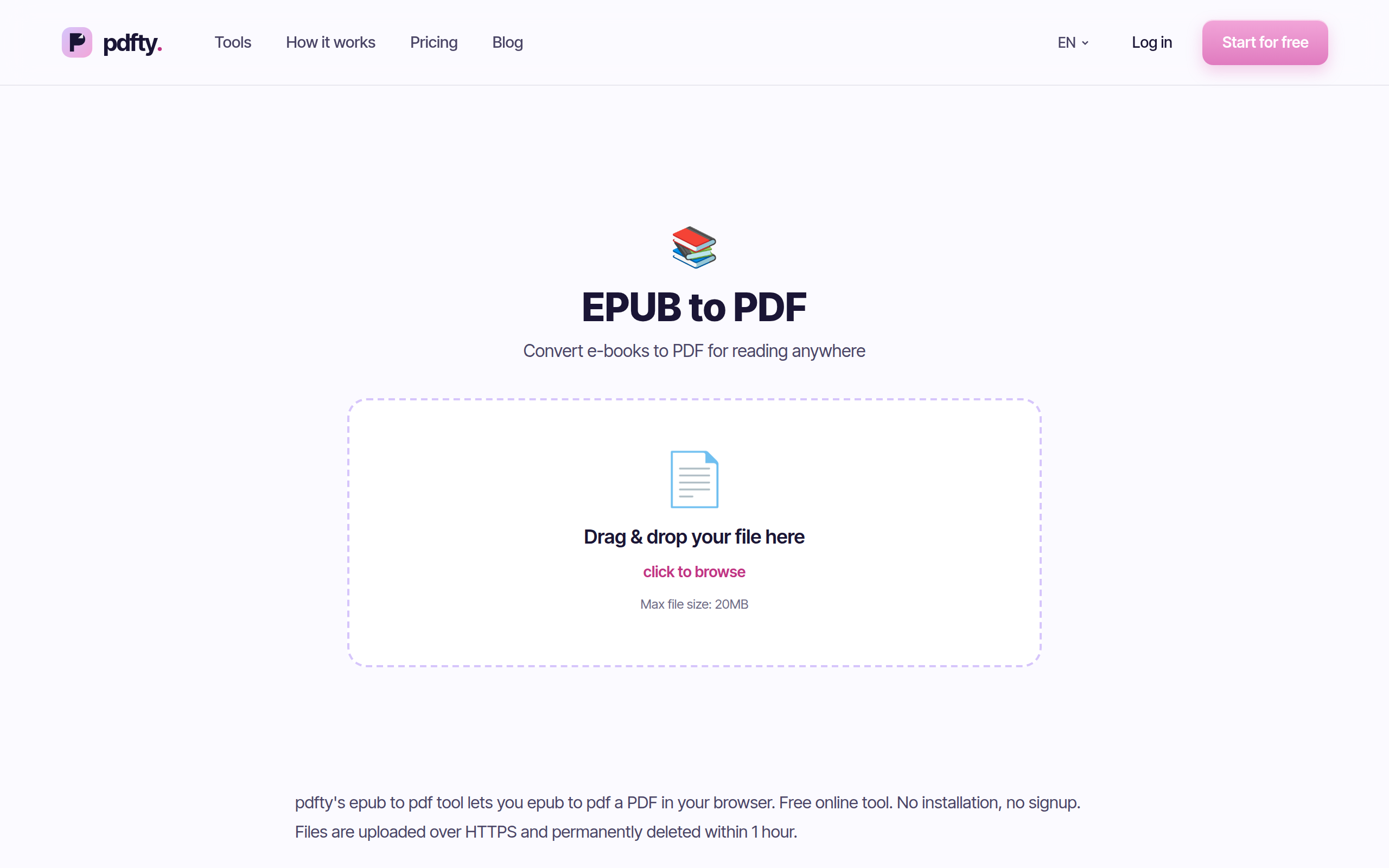
Go to pdfty.com/tools/epub-to-pdf. Works in any browser, desktop or phone.
Upload the EPUB
Drag the .epub file in. Free up to 20 MB — covers the vast majority of e-books, images included.
Convert
The book's chapters are laid out onto fixed pages — text, images, chapter breaks and the cover. A full-length book takes a little longer than a one-page document; still well under a minute.
Download the PDF
One continuous, paginated PDF of the whole book, ready to print, annotate or share.
Done — files auto-delete
Your upload and the output are removed from the server within 1 hour.
Be honest with yourself: do you want fixed pages?
This conversion is one of those cases where the "loss" isn't a bug — it's the definition of the output format. Know what you're trading:
| Aspect | EPUB (reflowable) | PDF (fixed) |
|---|---|---|
| Adjust font size while reading | Yes — text reflows | No — you zoom and pan instead |
| Reading on a small phone screen | Comfortable | Awkward for full-size pages |
| Printing | Unpredictable | Exactly what you see |
| Page numbers you can cite | None (positions shift) | Stable page numbers |
| Annotating / marking up | App-dependent | Standard PDF annotation everywhere |
| Opens without special software | Needs an EPUB reader | Any browser or OS viewer |
Rule of thumb: converting to read on paper, cite, annotate, or open on a device with no e-reader app — great idea. Converting to read a novel on your phone — keep the EPUB; a reflowing format genuinely reads better there.
Free local alternatives
- Calibre (Windows, Mac, Linux). The standard desktop e-book
manager converts EPUB → PDF with deep control: page size, margins,
fonts, headers with page numbers. It's a heavier install and the
options take some learning, but for converting a whole library it's
the best offline choice. CLI version:
ebook-convert book.epub book.pdf. - Print to PDF from an EPUB reader. Apps like Calibre's viewer or Thorium Reader can print — and every OS can "print" to a PDF file. Quick, though headers/footers and pagination depend on the app.
- Browser extensions / readers. Some browsers open EPUB with an extension and can print to PDF from there. Fidelity varies; fine for a chapter, tedious for a book.
The browser tool wins when you're converting one book, you're on a phone or a machine where you can't install software, or you just don't want to learn Calibre for a one-off.
Practical gotchas
Page size determines everything. The same EPUB becomes ~200 A4 pages or ~350 pocket-size pages. If you're printing, pick the paper size you'll actually use before converting.
Footnotes and internal links. EPUB footnotes are usually links to a notes section. In the PDF they become ordinary text at that section; pop-up footnote behaviour from e-readers doesn't exist in fixed pages.
Images and covers. Covers and inline images are embedded at their stored resolution. E-book images are optimised for screens, so a full-page print can look softer than a print-native book — that's the source material, not the conversion.
Fonts. If the EPUB embeds its fonts, they're used. If it just names fonts (common), the converter falls back to clean standard typefaces — readable, but not necessarily the designer's choice.
Fixed-layout EPUBs. Children's books and comics are sometimes "fixed-layout EPUB" — those convert very faithfully, since they were already page-based.
Size of the output. A text novel converts to a small PDF. An image-heavy book grows; if the result is too big to email, run it through Compress — see how to make a PDF smaller.
Frequently asked questions
Will the PDF look like the book did on my e-reader?
It will look like a clean rendition of the book — not a screenshot of your e-reader, which was applying your personal font and size settings. Chapters, images, emphasis and structure all carry over.
Can I choose the page size?
Yes — pick A4, Letter or other sizes before converting. Choose based on what you'll do with it: A4/Letter for printing, smaller formats if you'll read on a tablet.
Why can't I convert a book I paid for?
If it has DRM, the file is encrypted and we can't (and legally won't) unlock it. Check the store's policy — some let you download a DRM-free copy. Files you own DRM-free convert normally.
Is there a size or page limit?
Free: 20 MB per file, 50 pages of output, 10 operations per day. A 20 MB ceiling covers most e-books, but the 50-page limit means long books need Pro ($9/month), which removes the page and size limits.
What happens to my book file after converting?
It's deleted from the server automatically within 1 hour, along with the output. Nothing is retained or logged from the content.
Can I convert PDF back to EPUB?
Yes — PDF to EPUB does the reverse, with the opposite trade-off: you gain reflow and lose fixed layout. It works best on text-heavy PDFs.
Does the table of contents survive?
The chapters appear in order with their headings. EPUB's navigation map doesn't become clickable PDF bookmarks in every case — page thumbnails and search fill the gap.
Can I print just one chapter?
Convert the whole book, then cut the range you need with Split or Remove pages before printing.
pdfty チームはプライバシー重視のオンライン PDF ツール(圧縮・変換・OCR・署名・保護)を開発しています。ファイルは 1 時間以内に削除されます。 私たちについて →