How to Make a PDF Smaller (Without Losing Quality)
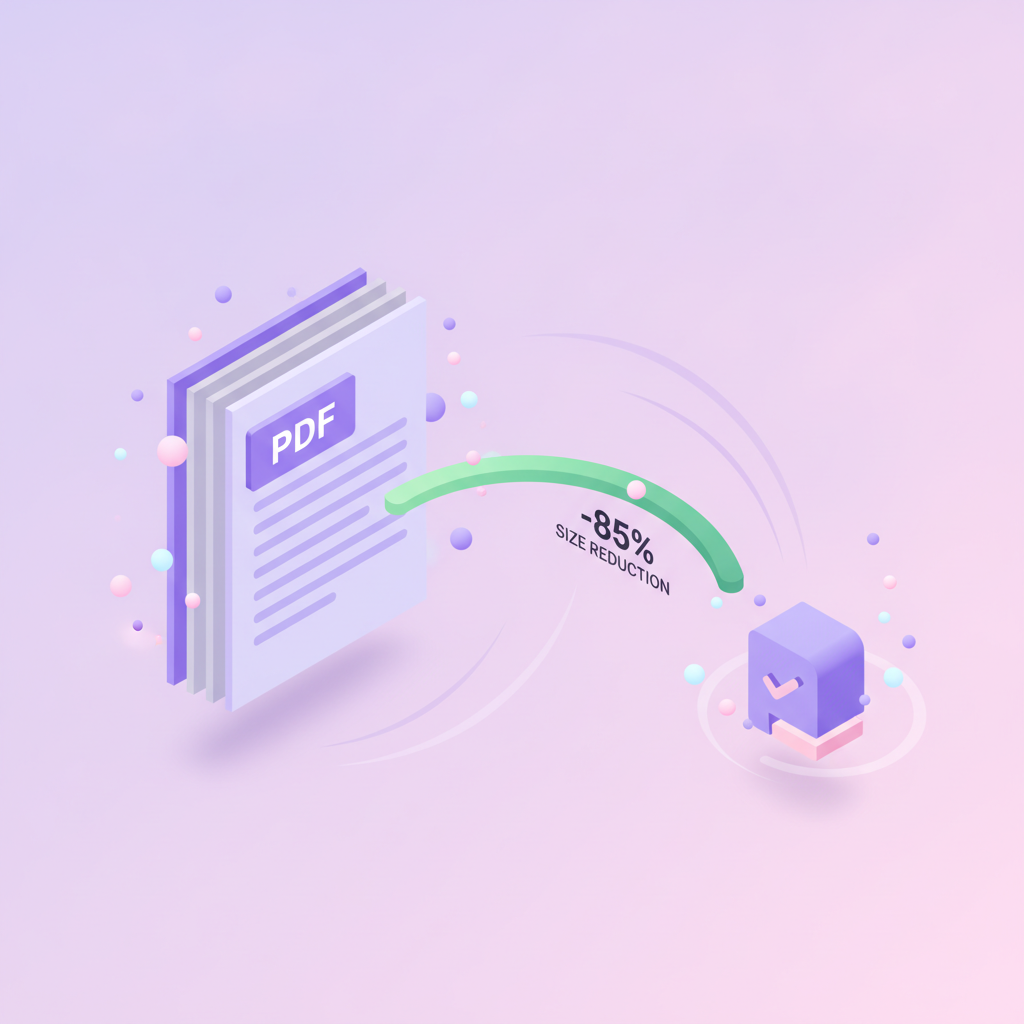
PDF file too big for email or an upload? Compress your PDF file free in 3 clicks — smaller file size, same quality. No software, no signup, 5 seconds.

You went to send a contract, a CV, a school assignment — and got the dreaded "file too large". Or you uploaded a document to a government portal and got "max file size 1 MB".
Annoying, but easy to fix. You don't need Acrobat, you don't need to install anything, and you don't need to know what "compression algorithm" means. Here's the whole process in plain English.
Why your PDF is so big
PDFs hold three kinds of stuff:
- Text — almost nothing (a 100-page novel is maybe 200 KB of text).
- Pictures — a lot. One phone photo embedded inside a PDF can easily be 3-5 MB on its own.
- Fonts — sometimes hundreds of KB if the PDF uses fancy typography.
When your PDF is fat, pictures are the culprit 9 times out of 10. Compression tools simply re-save those pictures at a smaller size while leaving the text alone. That's why the text stays perfectly readable afterwards — we're not touching it.
What determines PDF file size
Four things drive PDF document size, roughly in order of impact:
- Image resolution (DPI). The big one. A single A4 page scanned at 300 DPI in colour is 1-3 MB; the same page at 100 DPI is around 150-300 KB. A compress PDF tool works mostly by resampling images down to a resolution that still looks fine on screen.
- Scans vs real text. A page of actual text weighs about 2-3 KB. The same page as a scanned image weighs 100-1000x more, because every pixel has to be stored. That's why scanned PDFs dominate the "too big" club.
- Embedded fonts. Each embedded font adds 30-500 KB. A designer PDF with 8 fonts can carry 2 MB of typography before a single picture. Good tools subset fonts — keeping only the characters actually used.
- Metadata and leftovers. Edit history, page thumbnails, duplicate objects from repeated saves. Usually a few hundred KB — small, but free to strip.
When you compress a PDF file, the tool attacks the top two: it resamples images and re-encodes scans. That's where 90% of the savings live, and it's why the drop in PDF file size varies so much between a photo-heavy report (huge savings) and a plain text contract (modest ones).
How to check your PDF file size before and after
Thirty seconds of checking saves you a bounced email. How to see the size:
- Windows: right-click the file → Properties → size is on the General tab.
- macOS: click the file in Finder, press Cmd+I (Get Info).
- iPhone / Android: long-press the file in Files (or your file manager) → Info / Details.
Do this before and after compressing so you know exactly what you saved. And here's what a healthy PDF file size looks like per document type:
| Document type | Healthy size | Bloated if over |
|---|---|---|
| Text contract, ~10 pages | 100-500 KB | 2 MB |
| CV / resume, 1-2 pages | 100-400 KB | 1 MB |
| Presentation, ~20 slides | 2-5 MB | 15 MB |
| Scanned document | 100-300 KB/page | 1 MB/page |
If your file sits in the "bloated" column, compressing the PDF file size down to the healthy range is almost always possible without visible quality loss — and it's free under 20 MB.
How to make it smaller — step by step
Open the compress tool
Go to pdfty.com/tools/compress. That's it — no signup, no email, no card. Free up to 20 MB per file.
Drop your PDF
Drag the file onto the lavender box, or click to pick it from your computer. The upload starts immediately and uses a secure HTTPS connection.
Pick a quality
Three options. Almost everyone wants Web — it shrinks the most and the file still looks good on screen.
Pick Print if you'll print the PDF on paper. Pick Prepress only if it's going to a printing house.
Wait a few seconds
Most files finish in under 5 seconds. You'll see a green progress bar — when it hits 100%, your file is ready.
Download and you're done
Click Download and save the compressed PDF. We delete both the original and the compressed copy from our servers within 1 hour. Nothing else stays.
How small does it actually get?
Here's what we see in real numbers from thousands of files people compress on pdfty every week:
A real example: a 12-page scanned contract that was 12.4 MB came out at 1.8 MB after compression. Same text, same signatures, completely readable — just no more bloated.
"How small should I make it?"
It depends on where you're sending it.
| Where you're sending it | Try to be under | Why |
|---|---|---|
| Email (Gmail, Outlook) | under 5 MB | Email servers cap around 10-25 MB, but corporate spam filters often cut at 5 MB. |
| WhatsApp / Telegram | under 2 MB | WhatsApp accepts up to 100 MB but mobile data + slow networks make smaller better. |
| Online forms (visa, taxes) | under 1 MB | Government portals are infamously strict. Web quality usually fits. |
| Job application portals | under 2 MB | LinkedIn allows 2 MB, Indeed 5 MB, smaller is safer. |
| Archival (just saving) | No real limit | Use Print quality so it stays sharp for years. |
Will it look worse after compression?
Usually no. Here's the honest answer.
-
Normal PDFs (made from Word, Google Docs, PowerPoint, Pages): the text stays 100% sharp because text is stored as letters, not as pixels. Only the pictures get re-saved at a lower resolution, and on a screen you basically can't tell the difference.
-
Scanned documents (where the whole page is a photo): aggressive compression can make scans a bit fuzzier. If that's your file and clarity matters, pick Print quality instead of Web — you'll still save 30-50% but the scan stays crisp.
Is it safe to upload my PDF to a website?
Fair question — you probably don't want random servers holding onto your contracts or passport scans.
Here's what happens with pdfty specifically:
- The file goes over HTTPS (encrypted in transit).
- It sits on our server only as long as needed to compress it.
- It's deleted within 1 hour, automatically. No backups, no copies.
- We don't train any AI on your documents. We don't even read them.
For non-sensitive files (CVs, school assignments, marketing PDFs), this is totally fine. For extremely sensitive files (medical records, classified material), we recommend desktop software instead — your file never leaves your computer.
Frequently asked questions
Will the text become blurry?
No. Text in a regular PDF is stored as letters, not pixels — compression doesn't touch it. The only case where text can look fuzzy after compression is when the whole PDF is a scan (the page is a photo). For those, use Print quality, not Web.
My PDF is already small — can I make it smaller?
If your file is already optimised (for example, exported from a modern tool like Word 2021+ or Apple Pages), there might be very little to save. Our tool will just give you back your file unchanged — we never produce a bigger result.
How long does compression take?
About 3-5 seconds for most files under 20 MB. Bigger files or PDFs with lots of photos can take up to 30 seconds.
Is there a file size limit?
On the free plan, 20 MB per file. If your PDF is bigger than that, either upgrade to Pro ($9/mo, no limits) or split it into pieces first.
Can I compress a password-protected PDF?
You need to remove the password first. Use our Unlock PDF tool — type in the password you know, and it gives you back an unlocked file you can then compress.
What if my internet is slow?
The compression itself happens on our server, so once your file finishes uploading you're done in seconds. Slow internet only affects the upload and download.
What are the email attachment size limits?
Gmail: 25 MB. Outlook.com: 20 MB. Corporate Exchange servers: often just 10 MB. And there's a catch — attachments get encoded before sending, which inflates them by about 33%. So a 20 MB PDF actually travels as ~27 MB and bounces off Gmail's 25 MB cap. Practical rule: if the recipient's server might be strict, compress the PDF file down to under 5 MB and it will get through anywhere.
What target size should I aim for?
Depends on the destination: under 5 MB for email, under 2 MB for job portals and messengers, under 1 MB for government upload forms. Compressing a PDF document's size to these targets is free — just pick Web quality and check the result against the table above.
Will it remove anything from the PDF?
No. The content stays the same — same pages, same text, same images. The images just take up less space because they're saved with a smaller resolution. Nothing is deleted.
The pdfty team builds privacy-first online PDF tools — compress, convert, OCR, sign and protect. Files are deleted within 1 hour. About us →