Best Free PDF Compressor: 5 Honest Picks Compared
Five free PDF compressors compared honestly — quality control, size limits, privacy, watermarks — and which one actually fits your file and workflow.

"Best" is doing a lot of work in searches like best free PDF compressor. A compressor that's best for shrinking a 40 MB scan isn't the best for a quick email attachment, and the best tool for a developer scripting a batch job is useless to someone who just wants a button. So instead of a ranked list with a suspiciously convenient winner, here are five genuinely good free options judged on four things:
- Quality control — can you choose how aggressively it compresses?
- Limits — file size, page count, and how many tasks before a paywall
- Privacy — what happens to your file after you upload it
- Ease — how fast you get from "too big" to "done"
If you want the background on why PDFs get bloated and what compression actually removes, we cover that in how to make a PDF smaller. Here we're just picking tools.
pdfty Compress
Our own tool, so judge this section accordingly — but the facts are checkable in two minutes. pdfty Compress runs in the browser with no signup and no watermark. You pick one of four quality presets (low, medium, high, maximum), and under the hood it drives Ghostscript — the same engine the command-line crowd uses — with sensible DPI and image-quality settings mapped to each preset. Files are auto-deleted after 1 hour.
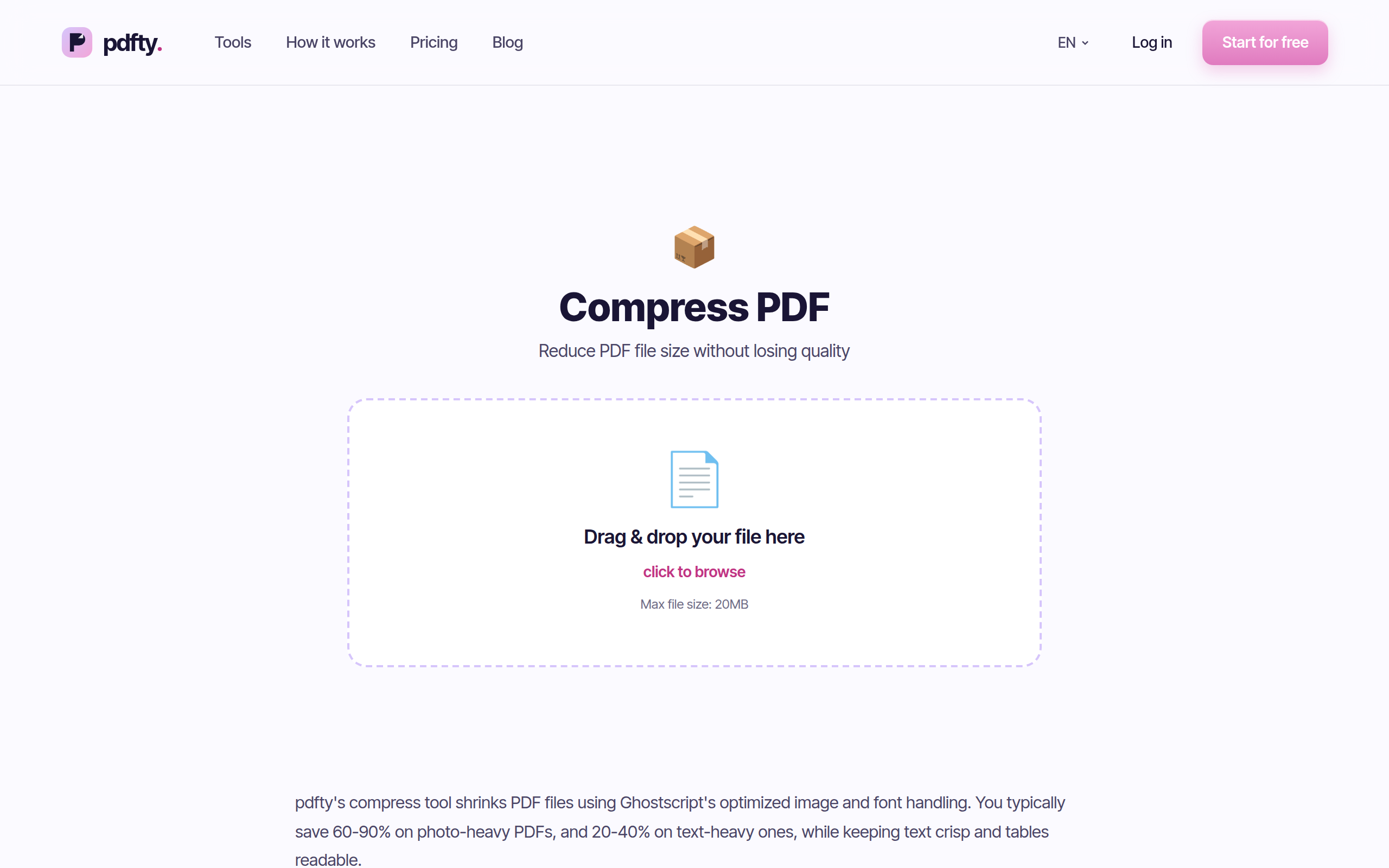
Pros: no account, no watermark, four real quality levels rather than a single mystery button, fast for typical documents, 1-hour auto-delete.
Cons: the free tier caps files at 20 MB and 50 pages with 10 operations a day — a 150-page scanned book is out of scope unless you go Pro ($9/mo). And it's online-only: no internet, no compression.
Best for: everyday files — reports, applications, email attachments — when you want presets without creating an account.
Smallpdf
Smallpdf is probably the most polished PDF suite on the web, and its compressor is no exception: clean interface, clear before/after sizes, and a choice between basic and strong compression (the stronger option sits behind Pro).
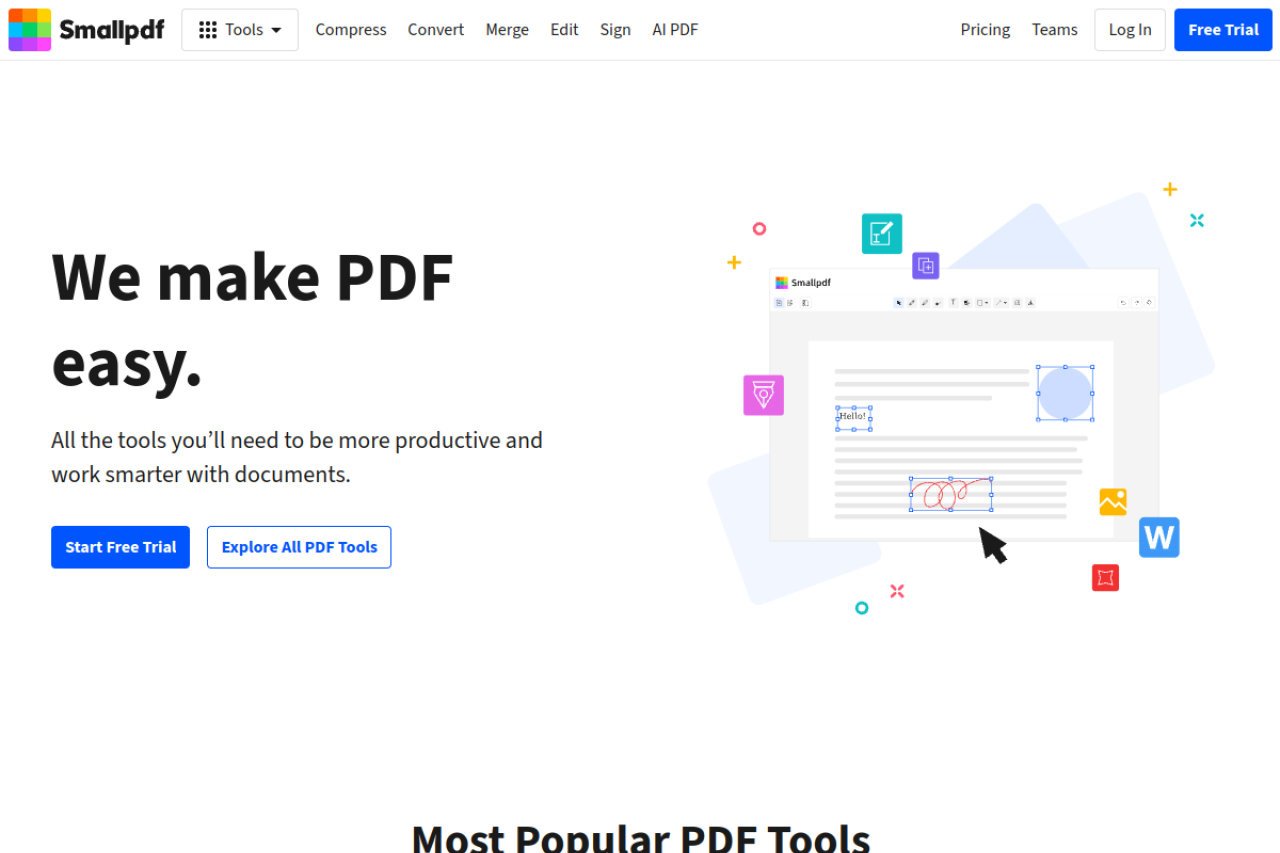
Pros: excellent design, reliable output, part of a broad suite if you end up paying for it.
Cons: the free tier is the tightest here — roughly 2 free tasks per day before you hit the signup/upgrade wall, and the strongest compression level is paid. Compress a file, then try to merge the result, and your day may already be over. More on that in our free Smallpdf alternative breakdown.
Best for: occasional single tasks, or teams already paying for the Pro suite.
iLovePDF
iLovePDF pairs a big tool list with one of the more generous free tiers among the commercial suites. Its compressor offers three levels (extreme, recommended, low compression), which is genuinely useful control.
Pros: generous free allowance for a commercial product, three named compression levels, handles typical office documents well.
Cons: it steers you toward creating an account fairly persistently, and the free limits tighten exactly when your files get bigger or more frequent — the classic upsell shape. We compare it in depth in iLovePDF alternative.
Best for: regular light use where you don't mind the account nudges.
PDF24
PDF24 is the outlier: fully free, funded by ads, with no meaningful task limits — and it ships PDF24 Creator, a free Windows desktop app, so you can compress offline with the file never leaving your machine. The compressor exposes DPI and image-quality settings directly, which is more granular than most online tools offer.
Pros: genuinely free without a task ceiling, offline Windows option, fine-grained quality settings.
Cons: the interface is utilitarian and ad-supported, the desktop app is Windows-only, and the sheer number of options can slow down a one-off job. Our full look: PDF24 alternative.
Best for: heavy or recurring compression, big files, and anyone on Windows who wants offline privacy for free.
Ghostscript
The technical pick. Ghostscript is free, open-source, runs on every platform, and gives you total control:
gs -sDEVICE=pdfwrite -dPDFSETTINGS=/ebook \
   -o output.pdf input.pdf
Swap /ebook for /screen (smaller, rougher) or /printer (larger,
sharper), or set image resolution per channel yourself.
Pros: free forever, no limits, fully offline, scriptable for batch jobs, the finest control of anything on this list.
Cons: command-line only. No preview, no undo, and it's easy to overshoot and produce a blurry mess until you learn the settings. This is a tool you invest in, not one you use once.
Best for: developers, batch processing, and anyone who read the code block above and nodded.
Side by side
| Compressor | Free limits | Best for |
|---|---|---|
| pdfty Compress | 20 MB, 50 pages, 10 ops/day | Quick no-signup jobs with preset control |
| Smallpdf | ~2 tasks/day, strong mode paid | Occasional tasks, polished UX |
| iLovePDF | Generous, account nudges | Regular light use |
| PDF24 | Effectively none (ad-supported) | Heavy use, offline on Windows |
| Ghostscript | None (open source) | Batch jobs and full control |
All five are free to use; limits and hedged figures are approximate and can change.
Read the green cells as "notably strong on this axis," not "winner." PDF24's unlimited-and-offline combination and pdfty's no-signup preset flow solve different problems.
Which one should you use?
- One file, right now, no account → pdfty Compress. Pick a preset, upload, done.
- A file over 20 MB, or dozens of files → PDF24, especially the Windows desktop app.
- Confidential documents you'd rather not upload at all → PDF24 Creator offline, or Ghostscript on any OS.
- You already pay for Smallpdf or iLovePDF → keep using them; the paid compressors are excellent.
- You script things → Ghostscript, no contest.
Frequently asked questions
What is the best free PDF compressor with no watermark?
None of the five tools here watermark your output — pdfty, Smallpdf, iLovePDF, PDF24 and Ghostscript all leave the document clean. Watermarking is more common among lesser-known "free" sites, which is a good reason to stick to established tools.
How much smaller will my PDF get?
It depends entirely on what's inside. Image-heavy scans often shrink by half or more because images are where the bytes live; a text-only PDF might barely change because there's little to compress. No honest tool promises a fixed percentage.
Does compressing a PDF reduce quality?
Usually yes, a little — most of the savings come from re-encoding images at lower resolution. That's why quality levels matter: a "low" preset is fine for email, while "high" keeps images crisp for print. Tools with only one button make that choice for you.
Is it safe to compress a PDF online?
Reputable services delete uploads automatically — pdfty after 1 hour, others typically within hours. For genuinely sensitive files, the safest option is not uploading at all: PDF24 Creator on Windows or Ghostscript anywhere keeps the file on your machine.
Can I compress a PDF below a specific size, like 1 MB?
Not directly with preset-based tools — you pick a quality level, not a target size. The practical approach is to try a medium preset, check the result, and step down if needed. Ghostscript users can iterate on DPI settings for finer control.
What's the best way to compress a scanned PDF?
Scans compress well because they're pure images — a lower-DPI preset often cuts them dramatically. If the scan needs to stay readable for OCR later, don't go below a medium setting; heavily compressed text images OCR poorly.
Why is my PDF still big after compressing?
Either it was already optimized, or the size lives somewhere compression doesn't touch — embedded fonts, attachments, or hundreds of vector elements. See how to make a PDF smaller for the other tricks: removing pages, splitting, and re-exporting.
Is there a completely unlimited free PDF compressor?
Yes — PDF24 (ad-supported, plus its offline Windows app) and Ghostscript (open-source CLI). Everything else on this list is free within limits: pdfty at 10 operations/day and 20 MB, Smallpdf at roughly 2 tasks/day, iLovePDF with softer but real ceilings.
The pdfty team builds privacy-first online PDF tools — compress, convert, OCR, sign and protect. Files are deleted within 1 hour. About us →