How to Change PDF Page Size (A4 to Letter and Back, Free)
Resize PDF pages between A4, Letter and other formats online — free, no sign-up. Scaling vs cropping explained, so nothing gets cut off in print.

A colleague in Chicago sends you a US Letter PDF; your office printer in Berlin only has A4 in the tray. Print it as-is and the printer either scales it unpredictably or trims a centimetre off the bottom. Or the reverse: your A4 report goes to a New York office and the last line of every page vanishes. The fix is to change the PDF page size before printing — deliberately, so you decide what happens to the content.
A4 vs Letter — why this bites
The two formats are frustratingly close but not interchangeable:
- A4: 210 × 297 mm (8.27 × 11.69 in) — taller and slightly narrower.
- US Letter: 215.9 × 279.4 mm (8.5 × 11 in) — wider and shorter.
Neither fits inside the other. Print A4 content on Letter paper untouched and the bottom is cut; print Letter on A4 and the sides are. Printer drivers have "fit to page" checkboxes, but they're easy to miss, inconsistent across machines, and useless when you're sending the PDF to someone else's printer. Resizing the PDF itself fixes the file once, for every printer after that.
How to resize — step by step
Open the tool
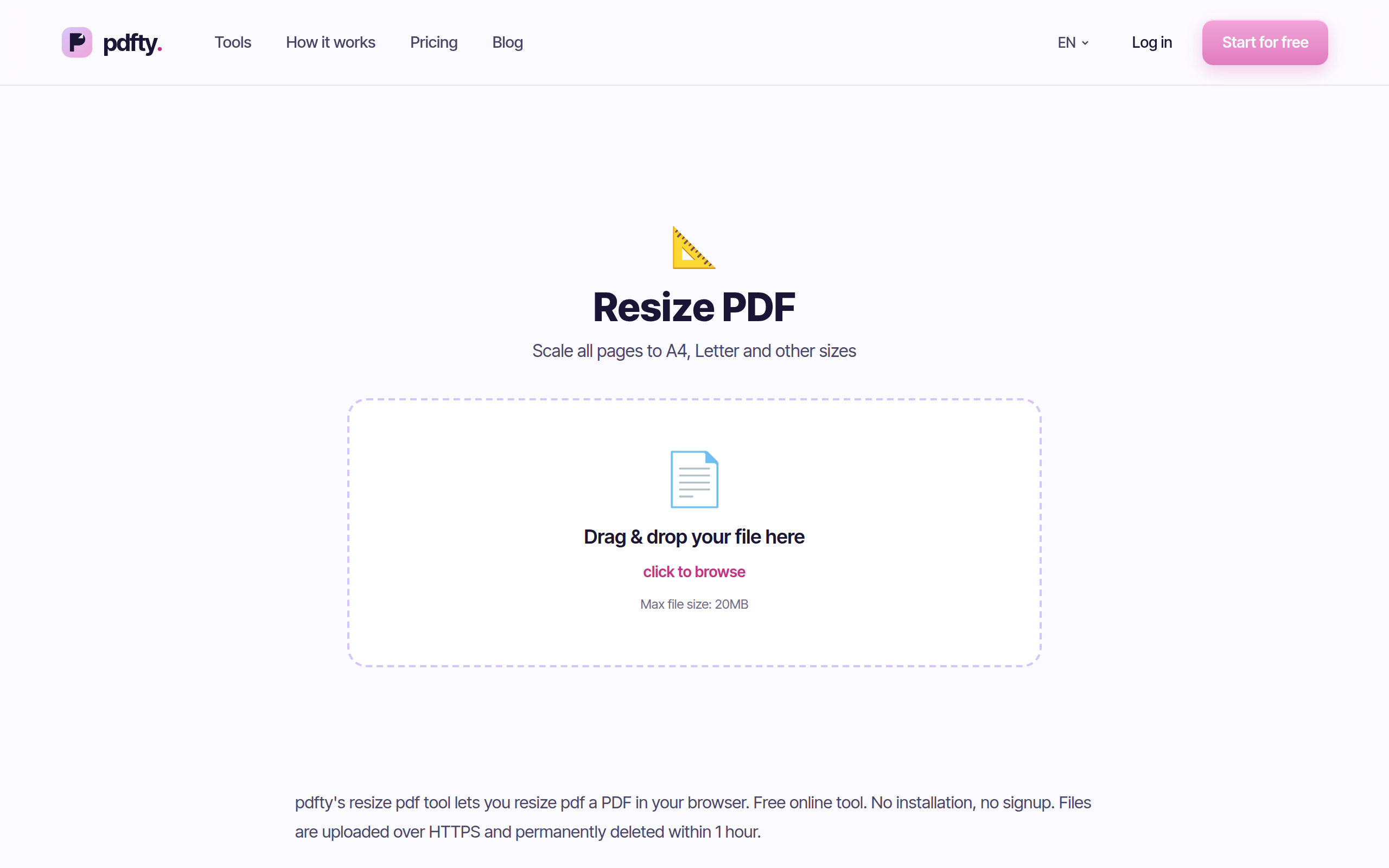
Go to pdfty.com/tools/resize-pdf. Free up to 20 MB and 50 pages, no account.
Upload your PDF
Drag the file in. The current page dimensions are detected and shown.
Pick the target size
Choose A4, Letter, Legal, A3, A5 — or a custom size. Content is scaled proportionally to fit the new page.
Resize
Every page is converted to the new dimensions. Takes a few seconds.
Download
One PDF, uniform page size, ready to print anywhere. Files are deleted from the server within 1 hour.
Scaling vs cropping — the distinction that matters
Two operations change page dimensions, and they do very different things to your content:
| Approach | What happens to content | When to use it |
|---|---|---|
| Scaling (resize) | Shrunk or enlarged proportionally — everything survives | A4↔Letter conversion, printing, standardizing mixed sizes |
| Cropping | Anything outside the new box is cut away | Trimming margins, removing scanner edges |
Both change the page size — only one of them can lose content.
Scaling is what you want for format conversion. Going Letter → A4, the content shrinks about 3% to fit the narrower width; because the proportions differ, you get a small extra margin at top and bottom instead of lost text. Going A4 → Letter is the mirror image: slight shrink to fit the shorter height, a little extra width at the sides.
Cropping keeps content at 100% size but cuts the page down — right for trimming dead margins, wrong for format conversion, because A4 content genuinely doesn't fit on a Letter page at full size. If trimming is actually what you're after, use Crop instead.
There's a third case worth naming: enlarging. Resizing isn't only for A4↔Letter — scaling an A4 handout up to A3 for a poster board, or a dense A4 datasheet up for easier reading, uses exactly the same operation in the other direction. Vector content survives enlargement perfectly; scanned pages are limited by their original resolution.
Resizing without an online tool
Free local routes that genuinely work:
- Print to PDF. On macOS, open the file in Preview, File → Print, pick the target paper size and "Scale to Fit", then choose "Save as PDF". On Windows, print to "Microsoft Print to PDF" with the target size in printer preferences. Caveat: this re-prints the document, so links and bookmarks are lost.
- Ghostscript (command line).
gs -o out.pdf -sDEVICE=pdfwrite -sPAPERSIZE=a4 -dFIXEDMEDIA -dPDFFitPage in.pdfscales every page to A4. Fast, scriptable, and keeps text as text. - LibreOffice can change the page size of documents it edits, but for an existing PDF it imports pages into Draw — fine for a page or two, clumsy for a long document.
Practical gotchas
- Text stays sharp, scanned images don't gain quality. Vector text and graphics rescale losslessly. A scanned page is a photo — shrinking is fine, but enlarging A5 scans to A3 just magnifies the blur.
- Fonts never reflow. Resizing scales the page like a photocopier at 97% — lines don't re-wrap and layouts don't rearrange. That's a feature: the document looks identical, just a different physical size.
- Hairline content near edges. Full-bleed backgrounds and edge decorations end up with a visible margin after scale-to-fit, since the aspect ratios differ. Unavoidable with any honest resize.
- File size barely moves. Page dimensions are metadata plus a scale factor; the images inside are untouched. For a lighter file, follow up with Compress — see how to make a PDF smaller.
- Form fields and annotations. Interactive form fields sit at fixed coordinates; a well-behaved resize moves them with the page content, but if your document is a filled form, open the result and confirm the fields still line up before sending it anywhere official. For a form you only need to print, Flatten it first and the question disappears.
Frequently asked questions
Will anything get cut off when converting A4 to Letter?
No — the resize scales content to fit entirely within the new page. Because the shapes differ, you get slim extra margins rather than lost text. Cutting only happens with cropping, which is a different tool.
Does resizing change the text quality?
Vector text is resolution-independent — it's redrawn perfectly at the new size. Only scanned (bitmap) pages are limited by their original scan resolution.
Can I resize just some pages?
The tool applies one target size to the whole document, which is what printing needs. To treat sections differently, Split the file first, resize the parts, then Merge.
What's the difference between this and cropping?
Resizing scales the content to new page dimensions — nothing is lost. Cropping cuts the page down and discards whatever lies outside the crop box. For margins, use Crop; for paper formats, resize.
Will my hyperlinks and bookmarks survive?
Resizing transforms pages inside the existing document, so internal structure is preserved — unlike the print-to-PDF workaround, which flattens the file into a plain printout.
Can I set a custom page size?
Yes — alongside the standard presets (A3, A4, A5, Letter, Legal) you can enter custom dimensions, useful for label stock or book trim sizes.
Is it really free?
Up to 20 MB and 50 pages, 10 operations per day — free, no sign-up, no watermark, files deleted within 1 hour. Pro ($9/mo) removes the limits.
My printer still scales the document when printing. Why?
Check the print dialog: set scaling to 100% or "Actual size". Once the PDF matches the paper in the tray, no further scaling should be applied by the driver.
يبني فريق pdfty أدوات PDF عبر الإنترنت تحترم الخصوصية — ضغط وتحويل وOCR وتوقيع وحماية. تُحذف الملفات خلال ساعة واحدة. من نحن ←