How to Convert PDF to PNG (Lossless Page Images, Right DPI)
Export PDF pages as crisp lossless PNGs for slides, docs and the web — free, no sign-up. How to pick the right DPI and avoid blurry results.

Sooner or later every PDF needs to become an image: a page dropped into a PowerPoint deck, a figure embedded in documentation, a form shown in a web article, a diagram pasted into a chat. Most apps won't embed a PDF directly — but every app on earth takes a PNG.
PNG specifically, rather than JPG, because it's lossless. JPG compression smears exactly the things PDF pages are full of: small text, table borders, thin diagram lines. A PNG renders them pixel-perfect. The price is a larger file — more on when that trade is worth it below.
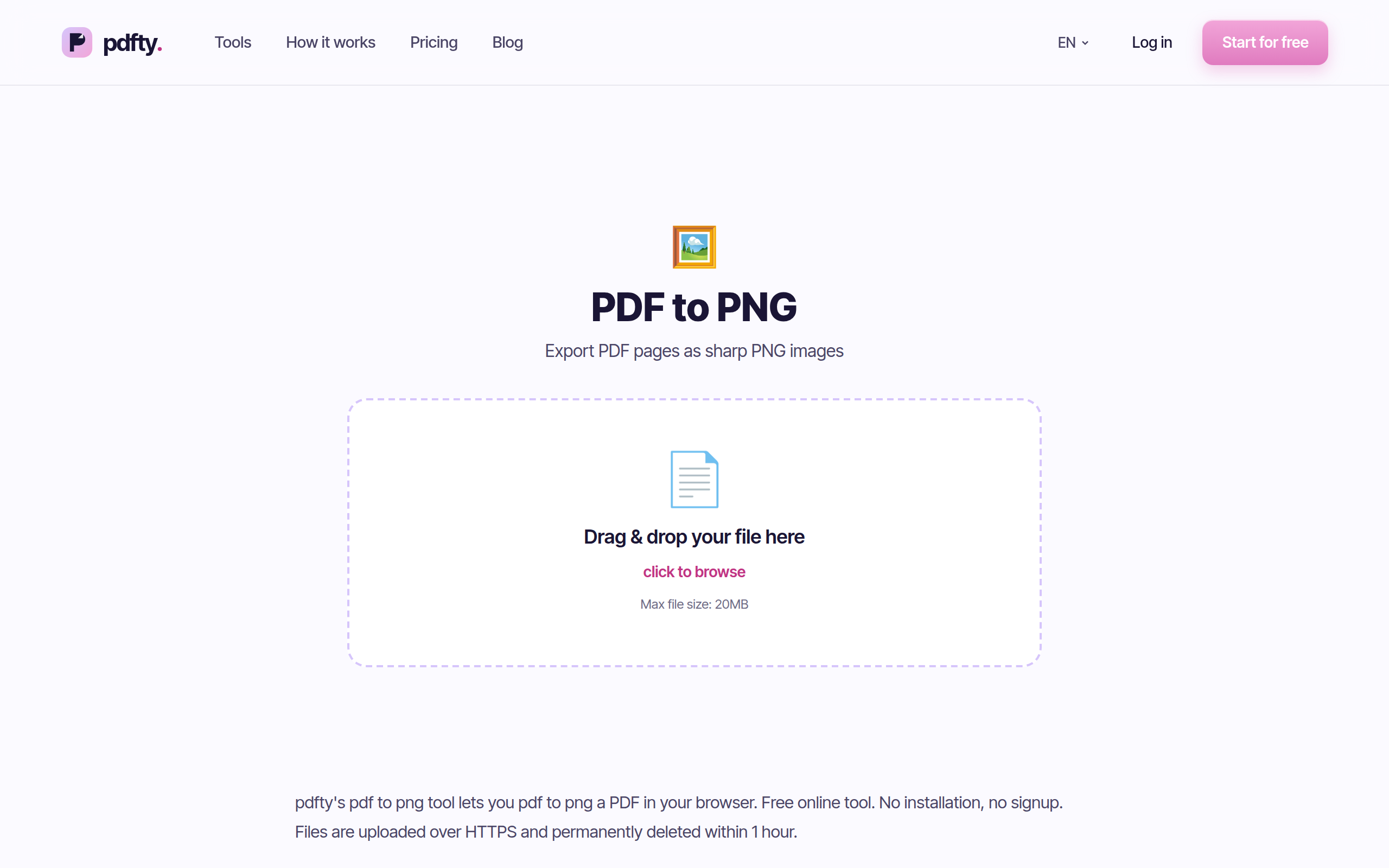
How to convert PDF to PNG — step by step
Open the tool
Go to pdfty.com/en/tools/pdf-to-png. Free up to 20 MB and 50 pages, no account.
Upload your PDF
Drag the file in. Password-protected? Run it through Unlock first.
Pick pages and resolution
Choose which pages to export and the DPI. 150 DPI is the sweet spot for slides and web; 300 DPI if the image will be printed or zoomed.
Convert
Each page is rendered to its own lossless PNG — text, vector lines and images exactly as they appear in the PDF.
Download
One PNG per page (a ZIP for multi-page documents). Files are deleted from the server within an hour.
Choosing the right DPI
DPI (dots per inch) decides how many pixels each page gets. An A4 page at 72 DPI is about 595×842 px; the same page at 300 DPI is 2480×3508 px. Pick based on where the image is going:
| DPI | Pixel size (A4 page) | Best for |
|---|---|---|
| 72–96 DPI | ≈ 600 × 850 px | Thumbnails, previews, chat messages |
| 150 DPI | ≈ 1240 × 1754 px | Slides, web embedding, documentation |
| 300 DPI | ≈ 2480 × 3508 px | Print, zooming into details, archiving |
Two rules of thumb. First, match the destination: a slide shown on a 1080p projector gains nothing from a 300 DPI export, it just bloats the deck. Second, when in doubt, go one step higher — you can always scale a PNG down losslessly, but scaling up produces mush.
There's also a practical ceiling. Doubling the DPI quadruples the pixel count, so a 600 DPI export of a graphics-heavy page can run to tens of megabytes per image — slow to upload, slow to open, and indistinguishable from 300 DPI on any normal display. Unless a print shop explicitly asks for more, 300 DPI is the sensible maximum.
Rendering pages vs. extracting images
Two different jobs get confused here. PDF to PNG renders whole pages — layout, text, graphics, everything — into one image per page. If what you actually want is the photos embedded inside the PDF at their original resolution, use Extract Images instead; the guide extract images from a PDF walks through it. Rendering a page containing a photo re-samples that photo at your chosen DPI, which may be lower than the original.
Free local alternatives
- macOS Preview — open the PDF, File → Export, format PNG. One page at a time, which is fine for a single figure and painful for twenty.
- Command line —
pdftoppm -png -r 150 input.pdf page(from poppler-utils) renders every page in one go and is what many online converters run underneath. Free, scriptable, offline. - GIMP — imports PDF pages at a DPI you choose; useful if you're going to edit the image anyway.
- Screenshots — honest mention: for a one-off slide at screen resolution, a tight screenshot of the PDF viewer is often good enough. It caps out at your display's resolution, though.
Practical gotchas
- Text stops being text. The PNG is a picture; nothing in it is selectable, searchable or accessible to screen readers. If the destination needs real text, consider PDF to Word or PDF to HTML instead — see convert PDF to HTML for the web case.
- File size. Lossless means large: a 300 DPI page full of graphics can be several megabytes. For photo-heavy pages where perfect edges don't matter, PDF to JPG gives much smaller files; for web embedding, PDF to WebP is smaller still.
- Transparency. PDF pages are rendered with their background, so the PNGs are opaque — you don't get transparent page backgrounds.
- Fonts render fine. Because the page is rasterized, missing-font substitution issues that plague format conversions don't apply here: what the viewer shows is what you get.
- Limits. Free tier: 20 MB and 50 pages per file, 10 operations a day. Pro ($9/mo) removes the caps.
Frequently asked questions
PNG or JPG — which should I pick for PDF pages?
PNG for anything with text, tables, line art or screenshots: it's lossless, so edges stay sharp. JPG only for photo-dominated pages where a much smaller file matters more than crisp text.
What DPI should I use?
150 DPI for slides, docs and web embedding; 300 DPI for print or when viewers will zoom in; 72–96 DPI only for thumbnails. Higher DPI = more pixels = bigger files.
Does each page become a separate PNG?
Yes — one PNG per page, delivered as a ZIP when the document has multiple pages. PNG has no multi-page variant.
Can I convert just one page?
Yes, select the pages you need before converting. For pulling pages out as PDF instead, use Split.
Why can't I select text in the PNG?
Because a PNG is pixels, not text. That's inherent to the format, not a tool limitation. Need editable output? Try PDF to Word — the honest pros and cons are in convert PDF to editable Word.
The PDF has photos — will they keep their original quality?
They're re-rendered at your chosen DPI, which may be below the photo's native resolution. To pull embedded photos out untouched, use Extract Images.
Are my files kept on the server?
No — processing happens over HTTPS and files are deleted within one
hour. For sensitive documents you can also use pdftoppm locally.
What are the free limits?
20 MB and 50 pages per file, 10 operations per day, no sign-up, no watermark. Pro is $9/mo for unlimited conversions.
The pdfty team builds privacy-first online PDF tools — compress, convert, OCR, sign and protect. Files are deleted within 1 hour. About us →


