How to Compress a PDF to 100 KB (or Any Exact Target Size)
Compress a PDF to 100 KB, 200 KB or 1 MB to pass strict upload limits on forms and portals — free, no sign-up, and honest about the quality trade-off.

Government portals, job applications, visa systems, university admissions, bank KYC forms — they all love a hard file-size cap. "Maximum upload size: 100 KB" doesn't negotiate: a 103 KB file fails exactly like a 10 MB one.
A normal PDF compressor isn't built for this. It makes your file smaller, but you don't control how much smaller — you compress, check the size, compress again with different settings, and repeat until you either pass the limit or give up. Target-size compression inverts that: you name the number, and the tool does the retry loop for you.
(If you don't have a hard cap and just want a lighter file, plain Compress is the gentler choice — our guide on making a PDF smaller covers that whole topic.)
How to compress a PDF to an exact size
Open the tool
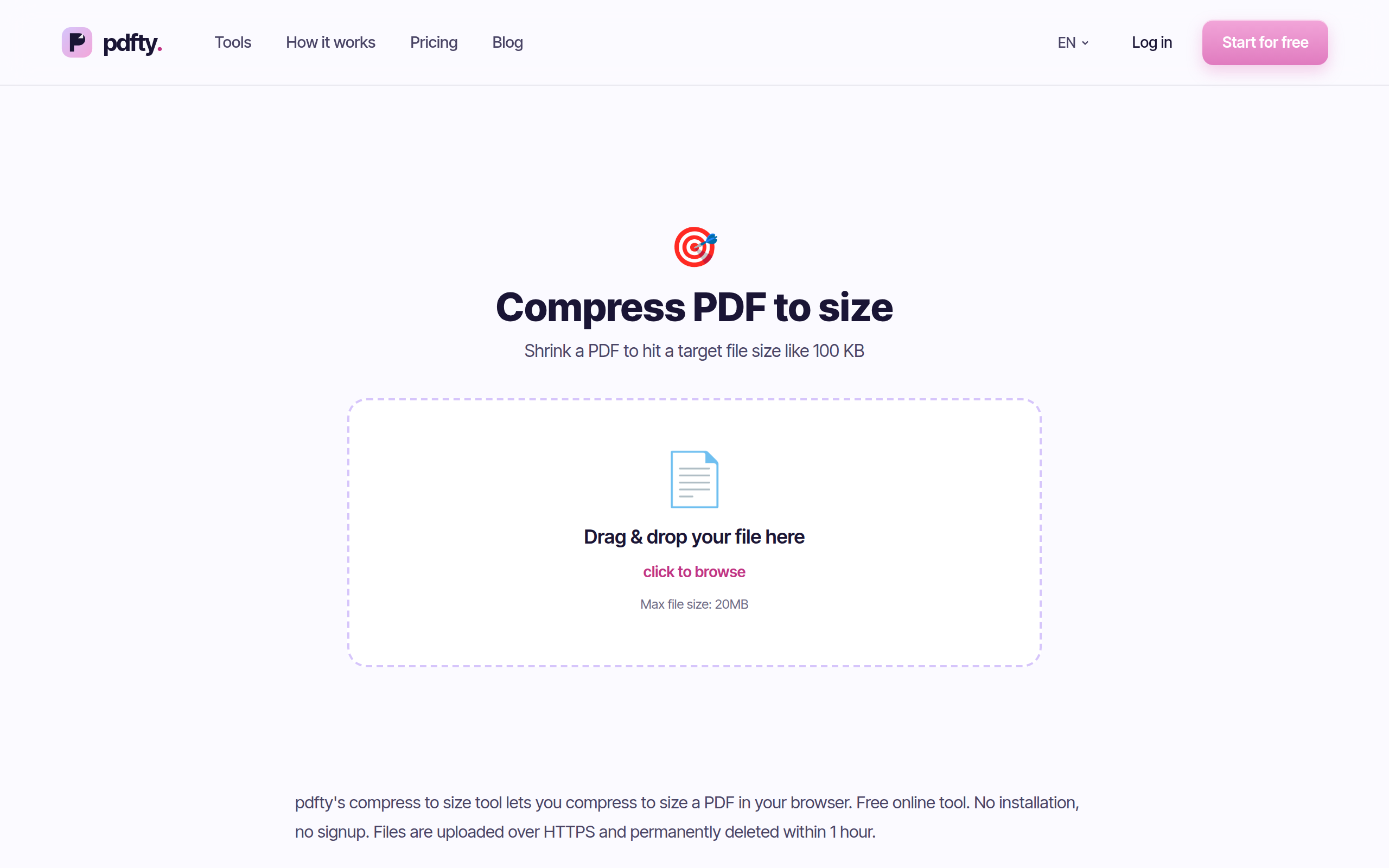
Go to pdfty.com/tools/compress-to-size. Free up to 20 MB and 50 pages, 10 operations/day, no account needed.
Upload your PDF
Drop the file that's getting rejected — the scan, the application packet, the signed form.
Set the target size
Enter the limit in KB — 100, 200, 500, 1024, whatever the portal demands. Accepted targets run from 50 KB up to 20 MB. If the form says "100 KB max", consider targeting a touch under it (say 95) for safety.
Compress
The tool runs a ladder of progressively stronger compression passes — starting gentle, then downsampling images harder — and stops as soon as a pass fits under your target.
Download and upload where it counts
Check the downloaded file's size, skim the pages for readability, then submit it to the portal. Your files are deleted from our servers after 1 hour.
What target-size compression actually trades away
There's no free lunch here, and any tool claiming otherwise is lying. Almost all of a typical PDF's weight is images — scans, photos, logos. To hit a small target, the compressor:
- Re-encodes images as JPEG at lower quality.
- Downsamples them — a 300 DPI scan becomes 120, then 96, then 72 DPI if needed.
- Deduplicates repeated images and subsets embedded fonts (these are nearly free wins).
Text stays sharp — it's vector data and survives every level untouched. The pictures are what pay. The smaller your target relative to the original, the further down the ladder the tool has to go:
| Target vs original | What happens | What to expect |
|---|---|---|
| Mild (e.g. 5 MB → 1 MB) | Light JPEG re-encoding, duplicate cleanup | Usually indistinguishable on screen |
| Strong (e.g. 5 MB → 300 KB) | Heavier JPEG compression, images downsampled | Fine on screen, noticeably softer in print |
| Extreme (e.g. 5 MB → 100 KB) | Maximum compression, 72–96 DPI images | Readable text, visibly soft photos and scans |
If the tool can't reach your target
Honesty section. Some files simply cannot become 100 KB:
- A text-only PDF might already be near its floor — there are no images left to squeeze.
- A 50-page scan has a physical minimum: even at the harshest settings, fifty page images weigh something.
In that case pdfty returns the smallest version it managed rather than failing — download it and check its size. If it's still over the limit, change the inputs instead of the compression:
- Split the document and upload it in parts, if the portal allows.
- Remove pages that the form doesn't actually require.
- Convert colour scans with Grayscale first — grey pages compress smaller.
- Re-scan at a lower resolution: a 150 DPI scan of a text form is usually fine and starts far smaller.
Free local alternatives
- Ghostscript (Linux/macOS/Windows) is the engine behind most compressors, pdfty's included. One pass:
gs -sDEVICE=pdfwrite -dPDFSETTINGS=/ebook -o out.pdf in.pdf. The catch: no target mode — you run it, check the size, tweak/ebookto/screenor add downsampling flags, and repeat by hand. That manual loop is exactly what the browser tool automates. - macOS Preview: File → Export → Quartz Filter → Reduce File Size. One fixed, often brutal setting — no control over the output size at all.
- LibreOffice / Word re-export can shrink a document you authored, but does nothing for scans and gives you no size control.
Practical gotchas
- Already-compressed files barely move. If someone has compressed the PDF before you, a second pass finds little left to remove.
- Scanned pages are the expensive part. One phone-photo page can outweigh fifty text pages. That's where the quality is visibly spent.
- Password-protected PDFs need to be unlocked before compression.
- Check the portal's other rules too — many size-capped uploads also demand specific page sizes or dimensions; Resize PDF handles that separately.
Frequently asked questions
Can every PDF be compressed to 100 KB?
No. Image-heavy or long documents have a physical floor. pdfty gets as close as its strongest settings allow and gives you the smallest result — check the downloaded file's size. If it's still too big, split the file or drop pages.
Will the text become blurry?
Real text (typed, exported from an editor) stays vector and perfectly sharp at every level. Text inside a scan is an image, so at extreme targets it softens — usually still readable at 100 KB for a one- or two-page form, but verify fine print yourself.
What sizes can I target?
Anything from 50 KB to 20 MB. Enter the value in KB — for a 1 MB limit, target 1024 KB or slightly under.
Why did I get a file that's smaller but still above my target?
That's the best-effort behaviour: every compression level was tried, and you received the smallest one. The file has hit its floor for this method — see the section above for ways to change the inputs instead.
Can the result ever be bigger than my original?
No. If every compression pass comes out larger (it happens with already optimised files), pdfty returns your original untouched rather than a "compressed" file that grew.
Is it really free? Any watermark?
Free tier: 10 operations/day, 20 MB and 50 pages per file, no sign-up, no watermark — ever. Pro ($9/mo) removes the limits. Uploaded files are deleted after 1 hour.
What's the difference from the regular Compress tool?
Compress applies one sensible quality level and the size lands where it lands. Compress-to-size works backwards from your number and keeps pushing until it fits. Use regular Compress when "smaller" is enough; use this one when a form names a figure.
Does compressing remove my signature or form fields?
The signature's appearance stays visible, but aggressive restructuring can flatten interactive elements and invalidate cryptographic signatures. If a document is formally signed, compress it before signing with Sign PDF, not after.
L'équipe pdfty crée des outils PDF en ligne respectueux de la vie privée — compresser, convertir, OCR, signer et protéger. Fichiers supprimés sous 1 heure. À propos →