How to Convert Excel to PDF Without Cutting Off Columns
Excel→PDF cutting off your last columns or splitting tables across pages? Here's the fix — clean, single-page-wide PDFs that print right.
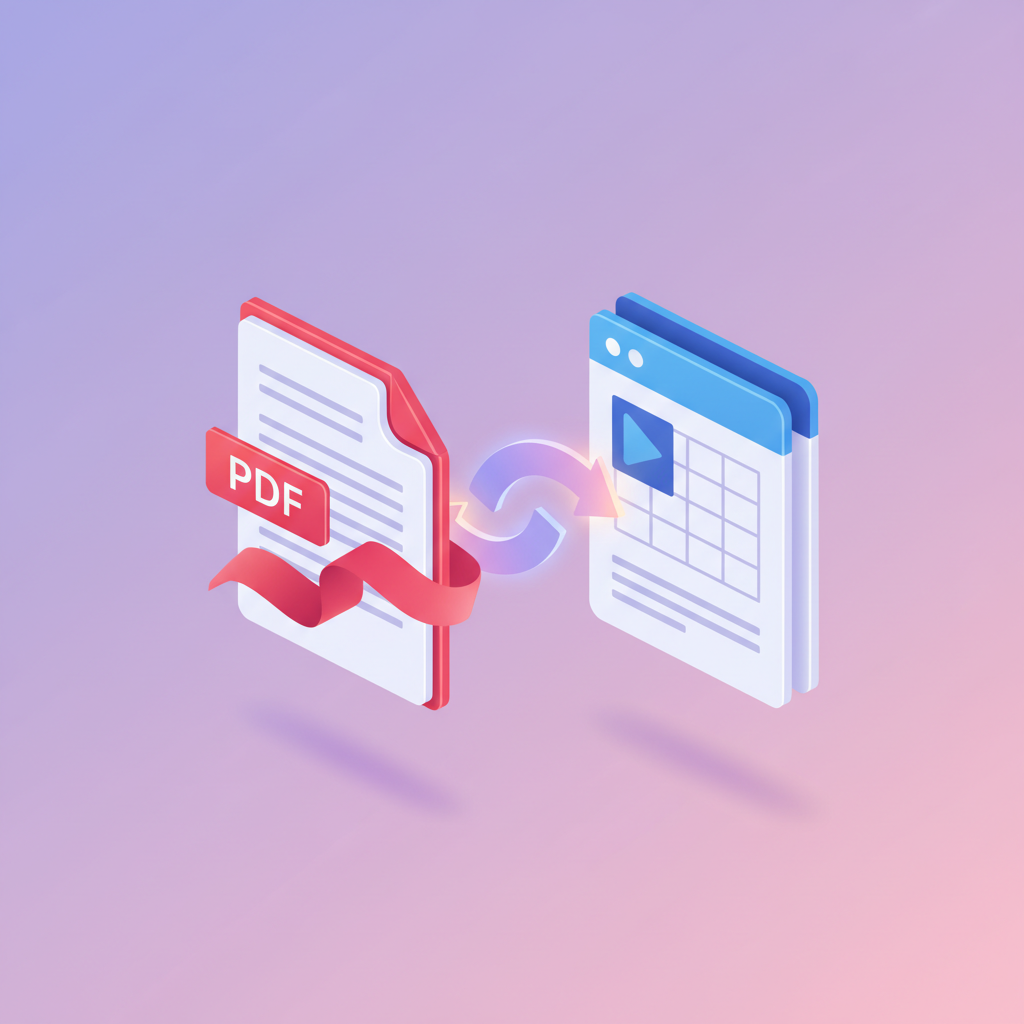
You've got a spreadsheet — a budget, a price list, an asset register — and you need it as a PDF. You hit Export, open the result, and your last 3 columns are on page 2, or worse, column F is on a completely different page from column E. The whole point of the export is broken.
Here's why it happens and how to fix it once.
Why Excel cuts off columns
Excel's default print setup tries to respect page size: it picks a paper size (usually US Letter or A4), measures your content, and prints as many columns as fit at the natural zoom. The rest spill onto more pages.
That's reasonable for a 1000-row financial model that should print on many pages. It's awful for a 15-column summary table you want as a single shareable document.
Two ways to fix:
- Tell Excel to fit to one page wide before exporting (the right answer, but a handful of clicks).
- Let pdfty handle it — our excel-to-pdf tool defaults to "fit sheet to page-width" so you don't have to touch Excel settings.
How to convert Excel to PDF — the right way
Open the converter
Go to pdfty.com/tools/excel-to-pdf.
Upload your spreadsheet
Drop the .xlsx, .xls or .csv. Free up to 20 MB.
Pick page settings
Default: Fit to 1 page wide × unlimited tall — the right answer for most summary tables. Your columns all stay on the same horizontal "page" no matter how tall the data is.
Alternative: Fit to 1 page total — squishes everything onto one page (good for a one-pager budget summary).
Or: Use Excel's own page setup — respects whatever you set in Excel's Page Layout.
Convert
5-10 seconds for most files.
Download
Open the PDF. All columns visible on each page, no awkward breaks. Multi-sheet workbooks get one section per sheet.
Doing it directly in Excel (if you prefer)
If you want to avoid uploading entirely:
- Open the file in Excel.
- Page Layout tab → Page Setup → small arrow in the bottom-right.
- On the Page tab: under Scaling, choose Fit to: 1 page(s) wide by [blank] tall.
- Click OK.
- File → Export → Create PDF/XPS.
Same result. About 10 clicks vs pdfty's two (upload + download).
Common pitfalls
| Symptom | Cause | Fix |
|---|---|---|
| Last columns on separate pages | No 'fit to 1 wide' set | Set Page Layout → Fit to: 1 page wide |
| Tiny unreadable text | Squishing 50+ columns onto one width | Split into column groups or use landscape |
| One sheet missing | Excel only exports active sheet by default | In our tool, pick 'all sheets' |
| Wide tables flipped sideways | Excel rotated the page automatically | Force portrait in the tool if you'd rather |
| Charts cut off | Print area set to a partial range | Clear print area in Excel before exporting |
| Random blank page at the end | Stray empty rows below the data | Delete trailing empty rows before exporting |
Frequently asked questions
Will my formulas and formatting be preserved?
The PDF is a rendered snapshot of the spreadsheet. You see the calculated values (not the formulas), the formatting (bold, colours, borders, conditional formatting), and the charts. Formulas don't carry over — they don't need to, because the PDF isn't editable.
What about pivot tables?
They're rendered to PDF as they appear in Excel — the current view. Slicers and filters at the moment of export are baked in.
Multi-sheet workbooks?
Yes — our tool processes every sheet by default. Each sheet becomes its own section in the PDF, in the order Excel has them. You can deselect specific sheets if you only want some.
Will hyperlinks in cells be clickable in the PDF?
Yes. Excel's =HYPERLINK() formulas and inserted hyperlinks both
become clickable links in the resulting PDF.
Can I do .csv → PDF?
Yes — drop a CSV, our tool renders it as a clean table. (Tip: if your CSV has lots of columns, the result might be tiny text. Open the CSV in Excel first, set column widths, then convert.)
Is there a limit on the number of rows?
20 MB file size on free. A spreadsheet with 100K rows can easily hit that. For huge data exports, consider splitting by month/year or by column-group instead.
Does it support .numbers (Apple Numbers)?
Currently no — please export from Numbers as .xlsx first (File →
Export To → Excel), then upload that.
Will the PDF be searchable?
Yes — all text in the resulting PDF is real, searchable text. Ctrl/Cmd-F works.
The pdfty team builds privacy-first online PDF tools — compress, convert, OCR, sign and protect. Files are deleted within 1 hour. About us →