How to Convert Markdown to PDF (Free, Code Blocks & Tables Intact)
Convert Markdown to a polished PDF — README files, notes and docs with code blocks and tables rendered properly. Free, in the browser, no sign-up.

Markdown is where things get written — READMEs, meeting notes, specs,
documentation. PDF is where things get sent: to a client who won't
open a .md file, to a manager who wants an attachment, to a printer.
The gap between the two is one conversion, and you shouldn't need to
install pandoc and a LaTeX distribution to cross it.
The catch with most quick routes is that they mangle exactly the parts
technical documents depend on: code blocks collapse into proportional
type, pipe tables print as a wall of | characters, and nested lists
flatten. A converter is only useful here if the code and the tables
survive — so that's the bar this guide holds everything to.
How to convert — step by step
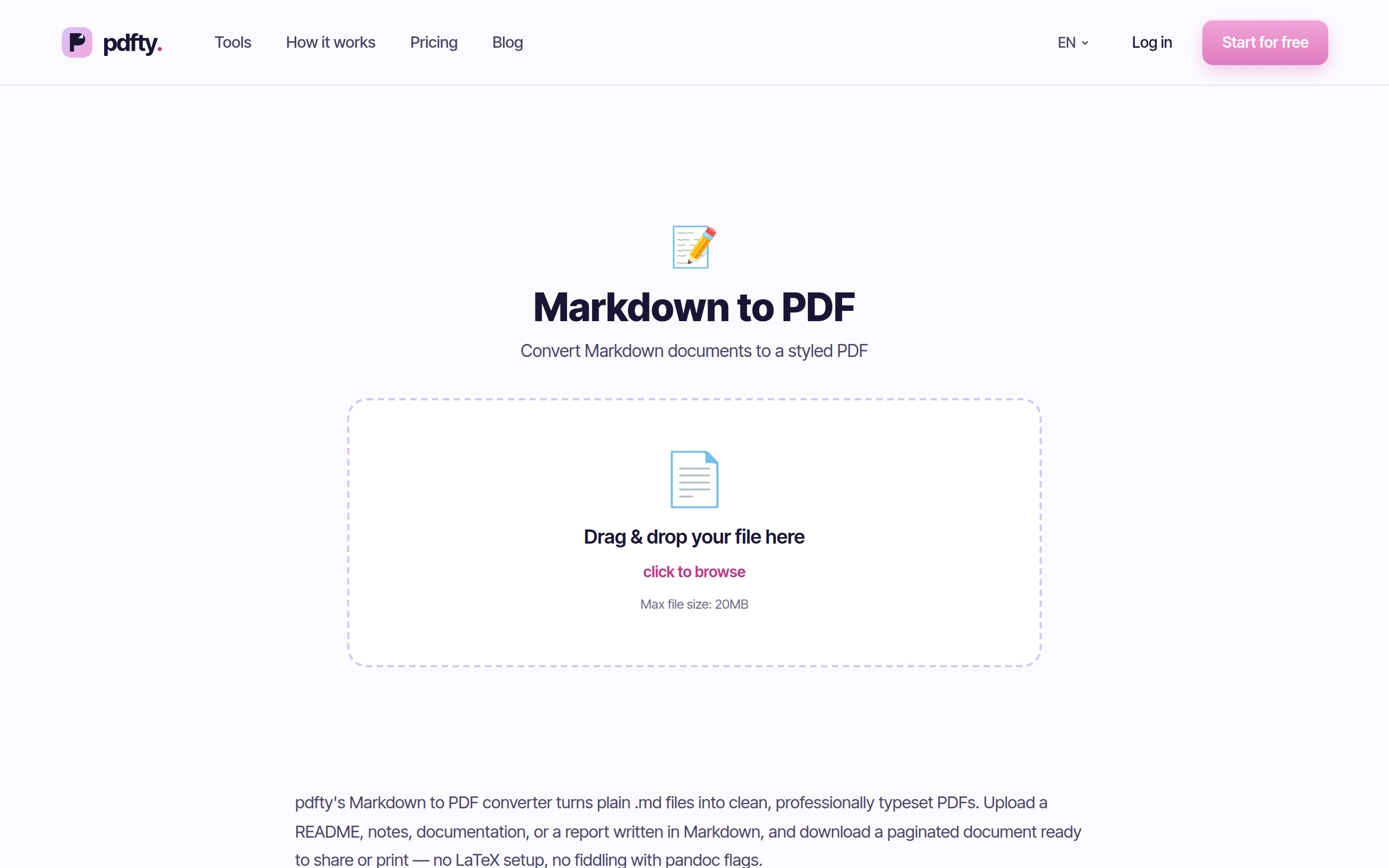
Open the tool
Go to pdfty.com/tools/markdown-to-pdf. Free up to 20 MB — and a 20 MB Markdown file would be a novel, so effectively unlimited.
Drop your .md file
.md and .markdown files are accepted. The file uploads over HTTPS and is deleted after 1 hour.
Conversion runs automatically
The Markdown is parsed (tables, fenced code and syntax highlighting included) and typeset with a clean built-in stylesheet. A few seconds.
Download the PDF
One PDF with proper headings, code blocks, tables and page breaks.
Check it over
Skim for anything that depended on your editor's custom rendering — see the gotchas below.
What renders, exactly
The converter supports standard Markdown plus the extensions that matter for technical writing:
- Headings — sized hierarchy, with subtle rules under H1 and H2
- Fenced code blocks — monospace, light-gray background, preserved indentation, syntax highlighting for common languages
- Inline code — the familiar gray-chip styling
- Tables — GitHub-style pipe tables become bordered tables with a shaded header row
- Blockquotes — left border, muted text
- Lists — ordered, unordered, nested
- Links — kept as clickable links in the PDF
- Images by URL —
images are fetched and embedded
The page is typeset at a comfortable reading width with generous margins — closer to "internal doc that looks finished" than to a raw browser printout.
What does NOT render
Honesty section. Markdown has dialects, and this tool implements standard Markdown + tables + fenced code, not the full GitHub flavor:
- Task lists (
- [ ] todo) print as literal brackets, not checkboxes. - Strikethrough (
~~text~~) is not converted — the tildes stay. - Local images (
) can't appear: you upload one file, and the server has no access to files sitting next to it on your disk. Host the image at a URL or expect a gap. - Mermaid / math blocks render as plain code blocks, not diagrams or equations.
- No custom themes — one built-in stylesheet, no CSS upload.
Free local alternatives
pandoc — the canonical converter:
pandoc README.md -o readme.pdf. Superb output and infinitely
configurable, but PDF output requires a LaTeX engine (often a 1–4 GB
install). Worth it if you convert documents weekly; absurd for one
README.
VS Code extensions (e.g. "Markdown PDF") — convenient if you live in VS Code already; output quality varies by extension and theme.
Browser preview + print: render the Markdown anywhere it previews (many editors can serve an HTML preview), then Ctrl/Cmd+P → Save as PDF. Free and local, but you inherit browser print quirks: URL headers/footers unless you disable them and page breaks landing mid-code-block.
macOS: no built-in Markdown renderer — Preview and TextEdit treat
.md as plain text, so you'd see the raw hashes and asterisks.
Practical gotchas
- Page breaks are automatic. Long code blocks may split across pages. There's no manual page-break marker; the engine breaks where needed.
- Very wide tables and long code lines get scaled or clipped at the content width — a 200-character table row cannot fit a portrait page gracefully. Shorten lines where you can.
- Front matter (
---YAML at the top of the file) is treated as content, not hidden — delete it before converting if you don't want it printed. (A---block at the very top may also render as a horizontal rule plus text, depending on formatting.) - Emoji shortcodes like
:rocket:stay literal; real pasted emoji characters generally render. - Check link targets. Relative links (
[docs](./docs/setup.md)) survive as links but point nowhere useful once printed.
Once the PDF exists, the usual toolbox applies: stamp it with Header & footer for page counters, combine chapters with Merge, or shrink an image-heavy one — see how to make a PDF smaller.
Frequently asked questions
Do code blocks keep syntax highlighting?
Yes — fenced blocks with a language hint (```python) get
color highlighting; without a hint, they're plain monospace on gray.
Either way, indentation is preserved exactly.
Do tables really render as tables?
Yes — pipe tables (the GitHub style) become bordered tables with a shaded header row. Alignment colons are respected by the parser.
Why is my image missing from the PDF?
It's referenced by a local path. The upload is one .md file, so
./images/x.png points at nothing. Use a full https:// URL, or
convert locally with pandoc where relative paths resolve.
Can I convert a README straight from GitHub?
Download the raw .md file first, then upload it. Badges and images
hosted at full URLs usually come through; GitHub-only features (task
lists, mermaid) won't — see the list above.
Can I change fonts, margins or colors?
Not in this tool — it ships one deliberately clean stylesheet. For a branded design, go through HTML to PDF with your own CSS.
Is there a size or page limit?
Free: 20 MB per file and 10 operations a day — for text files that's effectively no limit. Output PDFs over 50 pages generate fine from a single Markdown source.
Is my document private?
Transfer is HTTPS and files are auto-deleted within 1 hour. For confidential material you can't upload, pandoc is the local route.
Can I go the other way — PDF to Markdown?
Not directly. The closest is Extract text (plain text, no formatting) or PDF to Word and clean up from there.
The pdfty team builds privacy-first online PDF tools — compress, convert, OCR, sign and protect. Files are deleted within 1 hour. About us →


