Extract Pages from a PDF Free (Save Pages as a New PDF)
Pull specific pages out of a PDF and save them as a new file — free, no sign-up. Page ranges like 2-5, 8, 11 supported. Plus two built-in fallbacks.

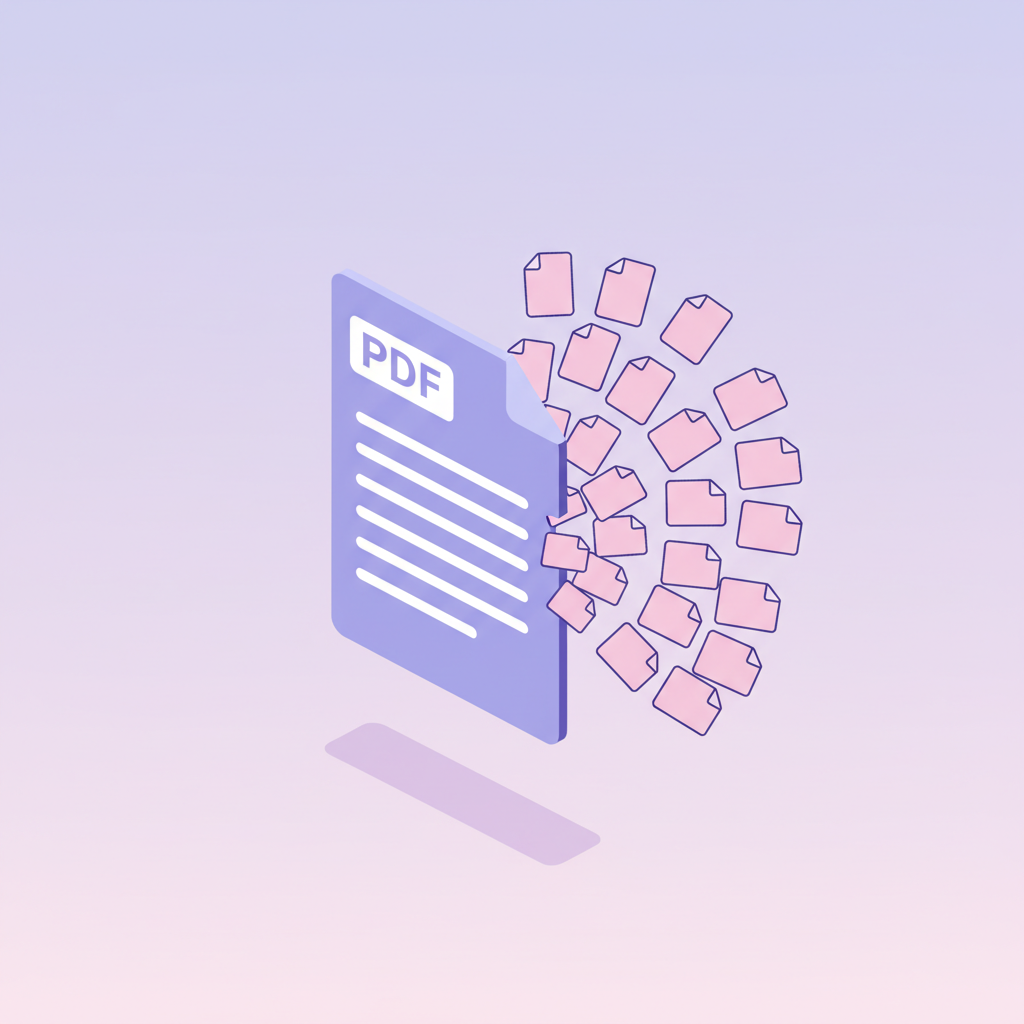
You have a 40-page PDF and you need pages 2-5, 8 and 11 as their own file — for an email attachment, a contract exhibit, a homework upload. The good news: to extract pages from a PDF you don't need Acrobat Pro or any install. A free browser tool does it in about 30 seconds, and the extracted pages are exact copies of the originals — same fonts, same images, same quality.
Extract vs split vs delete — which one do you actually want?
These three get mixed up constantly, and picking the wrong one wastes a round trip. Same tool handles all three on pdfty, but the setting matters:
| Operation | What you type | What you get |
|---|---|---|
| Extract pages | 2-5, 8, 11 | ONE new PDF containing only those 6 pages |
| Split into parts | Split at page 10, 20 | THREE separate PDFs: 1-10, 11-20, 21-end |
| Split every N pages | Every 1 page | One PDF per page — 40 pages, 40 files |
| Delete pages | Remove 6-7, 9-10 | ONE PDF with everything EXCEPT those pages |
Rule of thumb: if you can name the pages you want, extract. If you can name the pages you want gone, delete. If you need the whole document chopped into chunks, split — that workflow is covered in how to split a large PDF.
The 30-second way: Split PDF in your browser
Open the tool
Go to Split PDF in any browser — Mac, Windows, Chromebook, phone. No install, no account.
Upload your PDF
Drag it in. Free up to 20 MB and 50 pages — that covers the vast majority of contracts, reports and scans.
Enter the pages you want
Switch to extract mode and type a range: 2-5, 8, 11. Commas
separate entries, dashes make ranges. Page thumbnails let you
double-check you've got the right ones.
Extract
Takes 2-5 seconds. Pages are copied directly from the source — nothing is re-rendered.
Download the new PDF
One file with exactly the pages you named, in the order you named them. No watermarks. The upload is auto-deleted from our server within 1 hour.
Built-in fallback #1: print to PDF with a page range
Every modern browser and OS can do a crude version of extraction with no tools at all:
- Open the PDF in Chrome, Edge or Firefox (drag it into a tab).
- Press
Ctrl+P/⌘P. - Destination: Save as PDF.
- Pages: Custom → type
2-5, 8, 11. - Save.
It works everywhere and it's fine for a quick share. But know the trade-off: printing re-renders the pages. Depending on the browser, you can lose clickable hyperlinks, form fields, bookmarks and the exact original compression — text sometimes gets converted in ways that break copy-paste or search. File size often goes up, too. For a "read this section" email it's fine; for a contract exhibit or anything that will be processed further, use a real extraction tool.
Built-in fallback #2: Mac Preview drag-out
If you're on a Mac, Preview can extract pages without re-rendering:
- Open the PDF in Preview.
- View → Thumbnails (
⌥⌘2) to show the page sidebar. ⌘-click the thumbnails of the pages you want (2, 3, 4, 5, 8, 11).- Drag the selected thumbnails to your Desktop. macOS creates a new PDF containing just those pages.
This is a true copy, so quality is preserved. Two annoyances: the new file gets an auto-generated name you'll want to fix, and reordering pages means a second pass in the sidebar. Windows has no built-in equivalent — print-to-PDF or the browser tool are your options there.
Why extraction is lossless (and screenshots aren't)
A PDF page is a self-contained bundle of instructions: text runs with embedded fonts, vector drawings, and images at their stored resolution. When a tool extracts pages from a PDF document properly, it copies those bundles — plus the fonts and images they reference — into a new file unchanged. Zoom to 400% on the extracted page and it's pixel-identical to the source.
Compare the alternatives people reach for:
Screenshotting pages and pasting them into a new document is the worst option: you get a low-resolution raster, text stops being selectable or searchable, and file size balloons. If the PDF is a scan and you need the text itself, extraction won't help either — you want OCR; see the best free OCR for PDF.
Common extraction jobs and how to phrase the range
- One page as its own file — type just
8. - A chapter —
12-27. - First and last page of a contract (signature pages) —
1, 40. - Every appendix at the end —
33-40, or use split-at-page if you want the front half as a second file too. - Odd assortments —
2-5, 8, 11, 19-21all in one go; the output keeps that order.
If you need the same pages pulled from many similar files (say, page 1 of 30 invoices), the free tier's 10 operations per day covers a small batch; Pro ($9/mo) removes the daily cap and the 20 MB / 50-page limits.
Frequently asked questions
Does extracting pages reduce quality?
No. Extraction copies pages as-is — same fonts, same image data, same vector graphics. Nothing is recompressed or re-rendered. This is the key difference from print-to-PDF or screenshots, both of which re-render the page.
Is the extracted PDF's file size proportional to the page count?
Roughly, but not exactly. Fonts and images shared across pages are carried over once, so 5 pages out of 50 usually weigh a bit more than 10% of the original. If the result is still heavy (common with scans), run it through Compress.
Can I extract pages in a different order than the original?
Yes — type the range in the order you want, e.g. 11, 2-5, 8, and
the output follows it. Preview requires manual thumbnail reordering;
print-to-PDF always keeps source order.
Does the original PDF get modified?
Never. Extraction reads the source and writes a brand-new file. Your original stays untouched — on pdfty it's auto-deleted from the server within 1 hour either way.
Can I extract pages from a password-protected PDF?
You need the password. Unlock the file first (with the open password), then extract. Tools can't and shouldn't bypass a password you don't have.
What about extracting pages from a scanned PDF?
Works exactly the same — each scanned page is copied over at its full stored resolution. Just remember a scan's "text" is really a picture; if you need editable or searchable text, add an OCR pass afterwards.
Is there a limit on the free plan?
Free covers files up to 20 MB and 50 pages, 10 operations per day — no watermarks, no sign-up. Pro is $9/mo for unlimited size, pages and operations.
Can I extract pages and then combine them with pages from another PDF?
Yes — extract from each source, then combine the results with the merge tool. The full walkthrough is in how to merge PDFs without Adobe.
The pdfty team builds privacy-first online PDF tools — compress, convert, OCR, sign and protect. Files are deleted within 1 hour. About us →