How to Convert PNG to PDF (Combine Screenshots into One File)
Turn PNG screenshots and scans into a single PDF — free, no sign-up, no watermark. Covers page order, transparency flattening and local alternatives.

PNG is the format your computer produces when you aren't looking: every screenshot, most scanner apps, chart exports from spreadsheets, diagrams from design tools. It's great on screen — lossless, sharp text, clean lines — but terrible to send. Email ten screenshots as attachments and the recipient gets them in random order, half of them previewed sideways. Put the same ten images into one PDF and they open as a document, in the order you chose, on any device.
This guide covers the quick online route with pdfty, what actually happens to your pixels (nothing bad), the transparency catch, and the free local alternatives when you'd rather not upload anything.
How to convert PNG to PDF — step by step
Open the tool
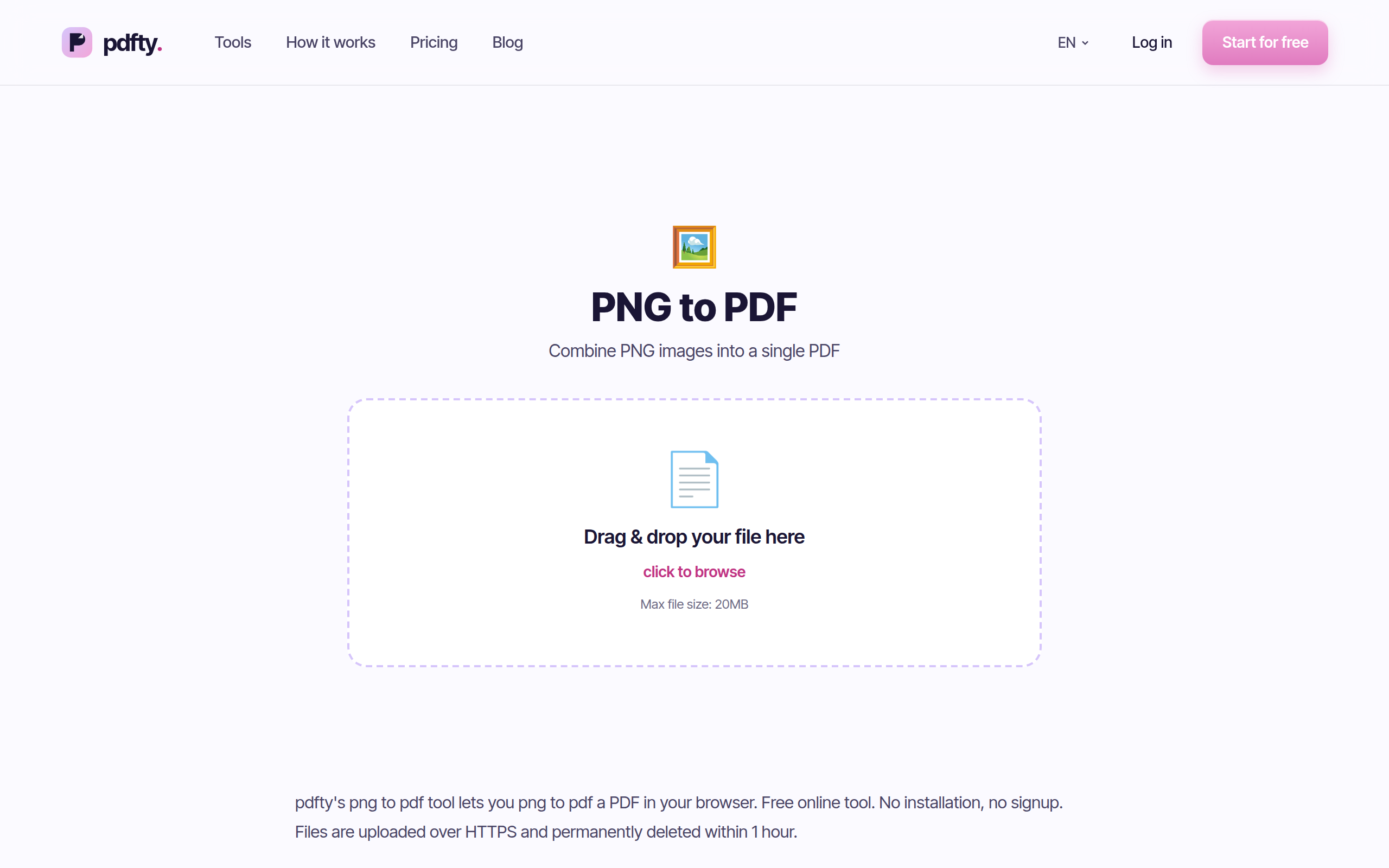
Go to pdfty.com/en/tools/png-to-pdf. No account needed; free up to 20 MB total.
Drop your PNGs
Select all of them at once — screenshots, scans, exported images. Each file becomes one page.
Arrange the pages
Drag the thumbnails into the order you want. Pick a page size — A4, Letter, or fit-the-page-to-each-image — plus orientation and margins.
Convert
A few seconds for a typical batch. The images are embedded losslessly; nothing is recompressed to JPEG.
Download one PDF
A single multi-page PDF, ready to email or upload. Your files are deleted from the server within an hour.
What happens to quality (and transparency)
The good news first: PNG to PDF is a lossless trip. A PDF page is a container that can embed image data directly, so your screenshot's pixels land in the PDF exactly as they were. Text in screenshots stays crisp, diagrams keep their clean edges. This is different from JPEG-based workflows, where every re-save costs a little quality.
The one thing that does change is transparency. PNG supports an alpha channel; PDF pages don't have "nothing" behind them — there's always a page. So any transparent region in your PNG gets flattened onto a white background. For screenshots and scans you'll never notice, because they're fully opaque anyway. Where it matters:
- Logos and icons with transparent backgrounds become logos on a white rectangle.
- Charts exported with transparency from design tools get a white page behind them — usually what you wanted for print anyway.
- Dark-mode assets designed to sit on a dark surface can look odd on white. Export them with a baked-in background first if that matters.
Free local alternatives
If your images are confidential or you're offline, you can do this without uploading anything:
- macOS Preview — select all the PNGs in Finder, right-click → Open With → Preview, select all thumbnails in the sidebar, then File → Print → Save as PDF. Clunky ordering, but free and built-in.
- Windows — select the images in Explorer, right-click → Print, choose Microsoft Print to PDF as the printer. Page size and margins are controlled by the print dialog.
- LibreOffice — paste images into a Writer document one per page and export as PDF. Most control over layout, most manual work.
- Command line —
img2pdf *.png -o out.pdfis the gold standard: it embeds PNGs losslessly without re-encoding. Avoid ImageMagick'sconvertfor this job — by default it rasterizes and can silently recompress.
All of these are fine for a one-off. The online route wins when you're on a phone, on someone else's machine, or converting for the fifth time today and don't want to babysit a print dialog.
Practical gotchas
- File size. PNG is lossless, so the PDF is roughly the sum of your images. Twenty full-resolution screenshots can easily make a 15 MB PDF. If the result is too heavy to email, run it through Compress — and see how to make a PDF smaller for what the trade-offs are.
- Mixed formats. Got JPGs in the same batch? Use JPG to PDF for those, or convert each batch and stitch the results with Merge. The walkthrough in how to convert JPG to PDF covers the photo side.
- Scans that need to be searchable. The PDF you get is images-only — there's no text layer, so you can't select or search text in it. Run the result through OCR to fix that.
- Huge dimensions. A 4-monitor screenshot on "fit page to image" produces a correspondingly huge page. Choose A4/Letter if the PDF is headed for print.
- Limits. The free tier covers 20 MB and 50 pages per file, 10 operations a day. Pro ($9/mo) lifts the limits.
Frequently asked questions
Will my PNGs lose quality in the PDF?
No. PNG data is embedded losslessly — no JPEG compression is applied. What you see in the PDF is pixel-for-pixel what was in the PNG.
What happens to transparent backgrounds?
They're flattened onto white. PDF pages can't be transparent, so any alpha channel in the PNG is composited against a white page. Opaque images (screenshots, scans) are unaffected.
Can I combine PNGs and JPGs in one PDF?
Not in one upload — this tool takes PNGs. Convert each format with its own tool (PNG to PDF, JPG to PDF), then combine the two PDFs with Merge.
How do I control the page order?
Drag the thumbnails before converting. The PDF follows exactly that order — no filename-based surprises.
Why is my PDF so large?
Because PNG is lossless and the conversion keeps it that way. If size matters more than pixel-perfection, compress the finished PDF with Compress.
Can I search text inside the converted PDF?
Not immediately — pages are images, not text. Run OCR on the result to add a searchable, selectable text layer.
Is it private?
Files are processed over HTTPS and deleted from the server within one hour. If that's still not acceptable for your content, use one of the offline routes above.
What are the free limits?
20 MB and 50 pages per file, 10 operations per day, no sign-up, no watermark. Pro is $9/mo for unlimited use.
The pdfty team builds privacy-first online PDF tools — compress, convert, OCR, sign and protect. Files are deleted within 1 hour. About us →


