Best Free PDF Merger: 5 Ways to Combine Files
Five free ways to merge PDFs compared — pdfty, iLovePDF, PDF24, Mac Preview and CLI tools — with reorder UI, limits, privacy and offline options.

Merging is the least glamorous PDF task and the one people do most: scans into one attachment, chapters into one manuscript, receipts into one expense report. Every tool on this list produces essentially the same merged file — so "best" comes down to four practical questions:
- Reorder UI — how easily can you fix the file order before merging?
- Limits — file sizes, page counts, tasks per day
- Privacy — does the file leave your machine, and for how long?
- Offline options — can you do it with no upload at all?
We're only covering free options here; if you landed on this page trying to escape an Acrobat prompt, there's a dedicated walkthrough in how to merge a PDF without Adobe.
pdfty Merge
pdfty Merge is the quick-online-job option: open the page, add your PDFs, merge, download. No signup, no watermark, and the merged file is auto-deleted after 1 hour.
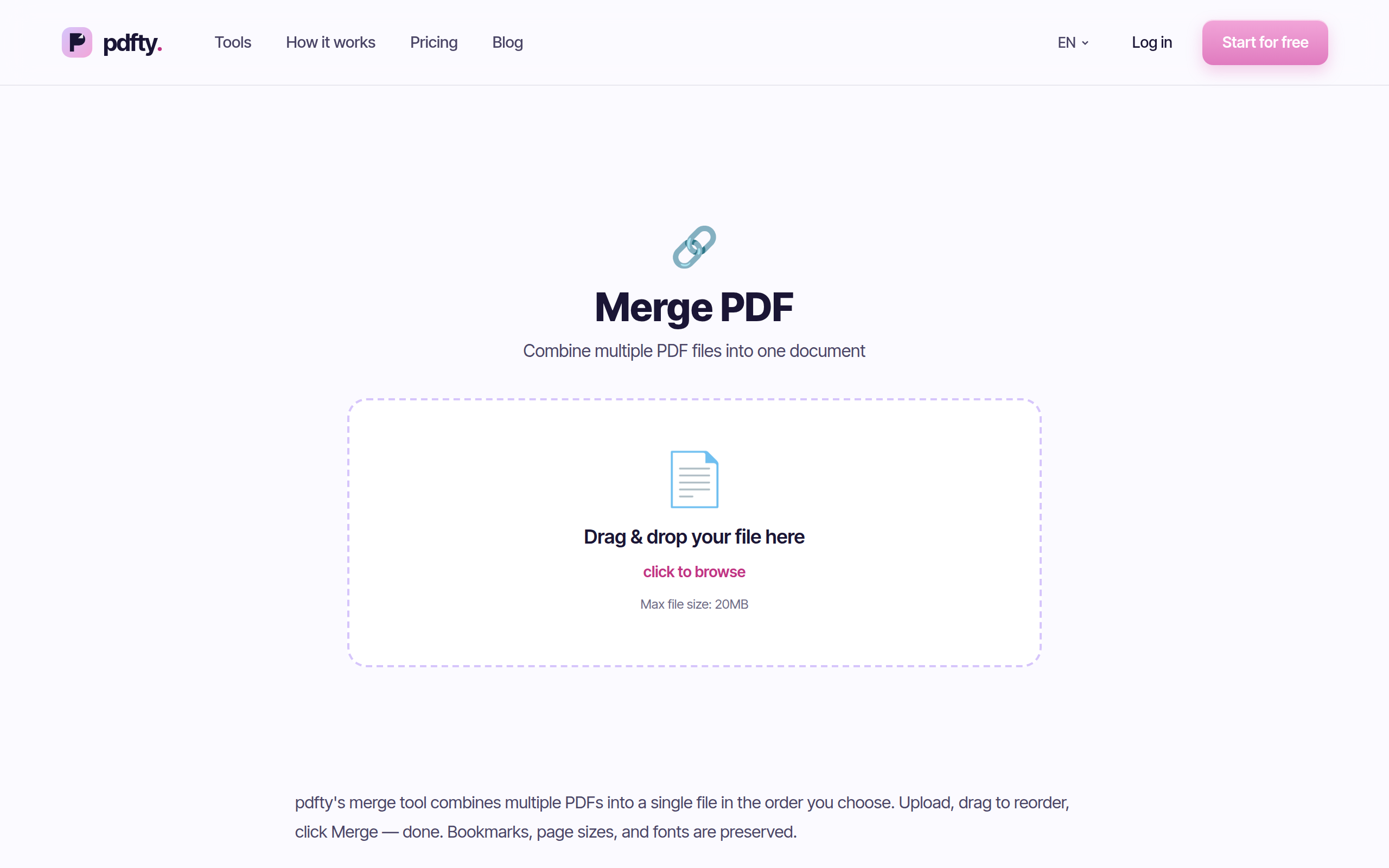
Pros: no account, no watermark, fast, 1-hour auto-delete, and it sits next to ~30 other tools — handy when the merged file then needs compressing or page numbers.
Cons: files merge in the order you add them — there's no thumbnail drag-and-drop like iLovePDF's, so add files in the right sequence (the separate Reorder pages tool can rescue a wrong order afterwards). Free limits are 20 MB and 50 pages per file, 10 operations a day; Pro at $9/mo lifts them.
Best for: merging a handful of normal-sized files quickly, without an account.
iLovePDF
For pure merging ergonomics, iLovePDF is hard to beat: it shows a thumbnail for every file, you drag them into order, and the free tier is among the more generous of the commercial suites.
Pros: the best reorder UI of the online options, generous free allowance, handles many files in one job.
Cons: steady pressure to create an account and upgrade, and free limits shrink as files grow — the pattern we detail in iLovePDF alternative.
Best for: merging many files where getting the order right visually matters.
PDF24
PDF24's merge tool is fully free with no meaningful task ceiling — ad-supported online, and available offline through the free PDF24 Creator app for Windows, which merges with your files never leaving the machine.
Pros: no task limits, real offline option, thumbnail reordering in the Creator app, genuinely free.
Cons: ads and a utilitarian interface online; the desktop app is Windows-only. Full picture in PDF24 alternative.
Best for: heavy mergers, big files, and Windows users who want offline privacy at zero cost.
Preview (Mac)
Every Mac ships with a competent PDF merger and most owners never notice. Open the first PDF in Preview, show the thumbnail sidebar (View → Thumbnails), then drag other PDFs — or individual pages — straight into the sidebar and arrange them. Export with File → Export as PDF.
Pros: already installed, completely offline, free, per-page control via sidebar dragging, no size or count limits beyond your patience.
Cons: Mac only, and the workflow has a famous trap — closing without exporting can quietly modify the original file. It also stops at merge/annotate/sign territory: no text editing, and nothing for Windows friends.
Best for: Mac users, sensitive documents, and merges where you want to interleave individual pages.
pdftk / qpdf (command line)
The technical picks. Both are free, open-source, cross-platform, and merge without any upload:
pdftk a.pdf b.pdf c.pdf cat output merged.pdf
# or
qpdf --empty --pages a.pdf b.pdf c.pdf -- merged.pdf
Pros: instant, offline, no limits, scriptable — merging 200 monthly reports becomes a one-line cron job. qpdf in particular is actively maintained and rock solid.
Cons: no interface at all. File order is argument order, there's no preview, and installing CLI tools is its own small project on some systems.
Best for: developers, repeated merges, automation.
Side by side
| Merger | Free limits | Best for |
|---|---|---|
| pdfty Merge | 20 MB & 50 pages/file, 10 ops/day | Quick online merges, no account |
| iLovePDF | Generous, account nudges | Many files, visual reordering |
| PDF24 | Effectively none (ad-supported) | Heavy use, offline on Windows |
| Preview (Mac) | None — built into macOS | Mac users, page-level control |
| pdftk / qpdf | None (open source) | Scripting and automation |
All five produce watermark-free output. Hedged limits are approximate and can change.
The pattern worth noticing: for merging specifically, the free offline options are unusually strong. This is a task where you often don't need the cloud at all.
Which one should you use?
- A few files, right now, any device → pdfty Merge. Add them in order and you're done in under a minute.
- A dozen files that need visual shuffling → iLovePDF's thumbnail grid, or PDF24 Creator offline.
- You're on a Mac → Preview first. It's already there and the file never leaves your machine — just remember to Export.
- Confidential documents → any offline route: Preview, PDF24 Creator, or the CLI tools.
- The same merge every week → script it with qpdf or pdftk once and never think about it again.
Frequently asked questions
What is the best free way to combine PDF files?
For a quick job with no account, an online tool like pdfty Merge is fastest. For sensitive files or heavy use, an offline option — Mac Preview, PDF24 Creator on Windows, or qpdf/pdftk anywhere — is better, because the documents never leave your computer.
Can I merge PDFs for free without a watermark?
Yes. None of the five options here watermark merged files. If a "free" merger stamps its logo across your pages, close the tab — you have at least five better options.
How do I control the page order when merging?
Online, iLovePDF and PDF24 offer drag-to-reorder thumbnails; on pdfty, files merge in the order you add them, and the Reorder pages tool can fix the sequence afterwards. On a Mac, Preview's sidebar gives you page-by-page control. On the CLI, argument order is page order.
Is it safe to merge PDFs online?
For everyday documents, yes — reputable tools delete uploads automatically (pdfty after 1 hour). For contracts, medical records or anything confidential, prefer an offline merge; this is one PDF task where excellent offline tools are free.
Can I merge PDFs on Windows without installing anything?
Windows has no built-in equivalent of Mac's Preview, so it's either a browser tool (pdfty, iLovePDF, PDF24 online) or a small install like PDF24 Creator for offline work.
Is there a limit to how many PDFs I can merge at once?
Each tool differs: pdfty's free tier counts a merge as one of your 10 daily operations with each file under 20 MB and 50 pages; iLovePDF and PDF24 allow many files per job; Preview and the CLI tools are limited only by your machine.
Does merging reduce the quality of my PDFs?
No. Merging copies pages as-is into a new file — text, images and vector content are untouched. If the merged file is too big to email afterwards, that's a separate compression step.
Can I merge specific pages from different PDFs?
Online merge tools generally join whole files. To mix individual pages,
either use Mac Preview's sidebar (drag single pages between documents),
or split the sources first and merge the pieces —
also the CLI tools' home turf (qpdf --pages a.pdf 1-3 b.pdf 5 --).
The pdfty team builds privacy-first online PDF tools — compress, convert, OCR, sign and protect. Files are deleted within 1 hour. About us →