How to Convert PDF to Text (Pull Raw Text for Editing & Analysis)
Extract raw text from any PDF into a plain .txt file for editing, scripting or analysis — free, no sign-up. Plus what to do when the PDF is a scan.

Sometimes a PDF is exactly the wrong container. You don't want the fonts, the margins or the two-column layout — you want the words, as raw material: to paste into an editor, to pipe through a script, to count, to translate, to search across, to feed into an analysis. Converting PDF to plain text strips away everything except the content, and that's precisely the point.
Typical reasons people do this:
- Editing — reworking contract boilerplate or report text without fighting PDF editors.
- Scripting and analysis — grep, word frequencies, data pipelines, feeding documents to tooling that eats plain text.
- Translation — most translation workflows want clean text, not a styled document.
- Accessibility and portability — a .txt opens on anything, down to a 30-year-old machine.
One note before we start: Extract text on pdfty is the same engine — both pull the embedded text out of the PDF. Whichever one you reach first will give you the same words; PDF to TXT hands them back as a downloadable .txt file.
How to convert PDF to text — step by step
Open the tool
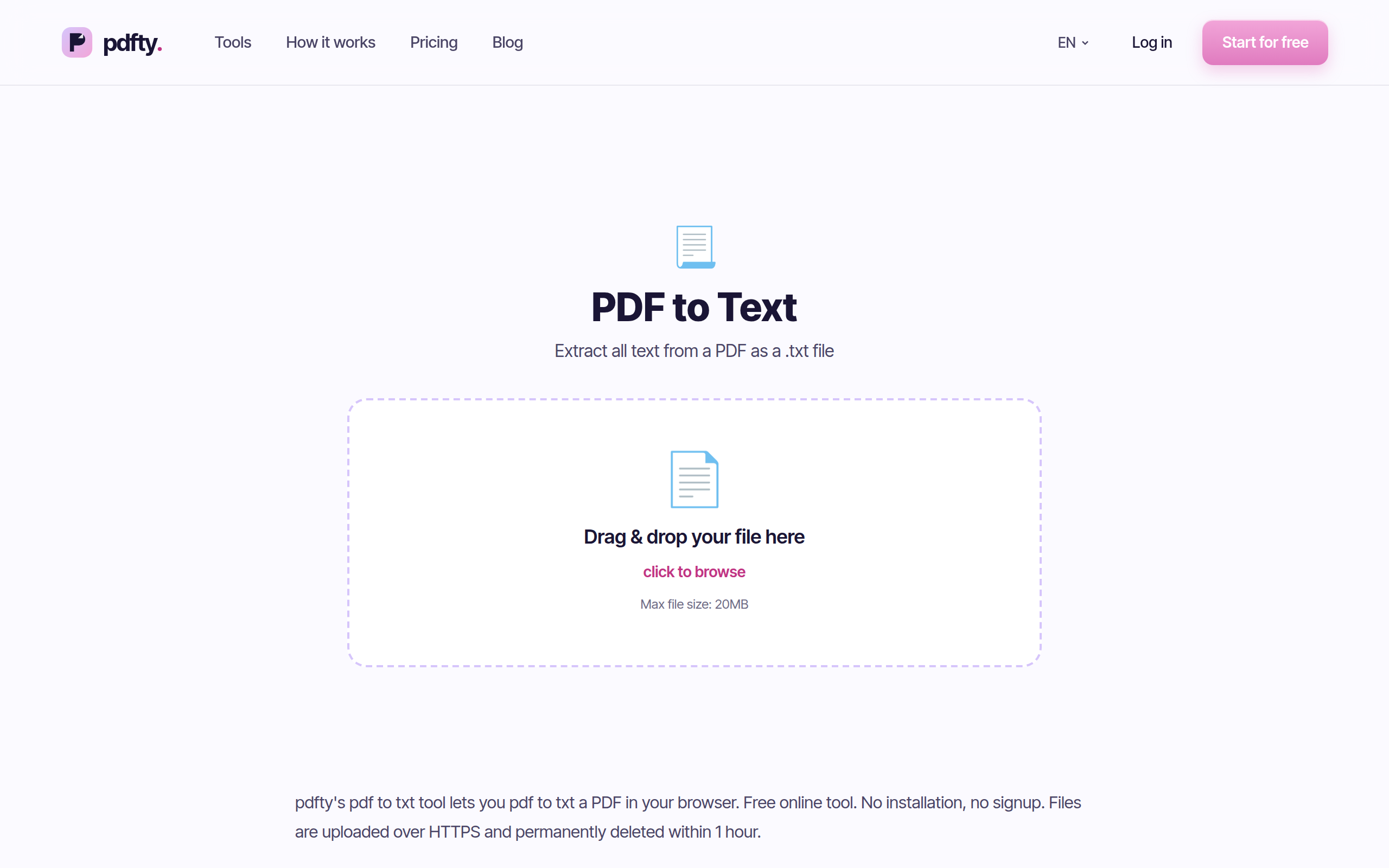
Go to pdfty.com/en/tools/pdf-to-txt. Free up to 20 MB and 50 pages, no account.
Upload your PDF
Drag it in. If it's password-protected, Unlock it first.
Convert
The embedded text layer is read out of every page, in order. A few seconds.
Download the .txt
One plain text file with the document's full text. Uploads are auto-deleted after 1 hour.
Sanity-check the output
Skim it once. If it's empty or gibberish, your PDF is a scan — see the OCR section below.
The scan problem: when there's no text to extract
This is the single most common surprise in PDF text extraction. A PDF can contain its text in two completely different ways:
- Digital PDFs (exported from Word, a website, an invoice system) carry a real text layer. Extraction is instant and accurate.
- Scanned PDFs (from a scanner or a phone camera) contain only pictures of text. There is literally nothing to extract — the output will be empty.
The fix for scans is OCR — optical character recognition — which reads the pixels and builds a text layer. Run your scan through OCR first, then convert the result to text. Accuracy depends on scan quality; our roundup of the best free OCR for PDF covers what to expect.
Plain text vs Word vs HTML — how much structure do you need?
Plain text is one end of a spectrum. Be deliberate about where you land:
| You need | Right tool | What survives |
|---|---|---|
| Just the words, for scripts or editing | PDF to TXT | All text, in reading order — zero layout, zero styling |
| An editable document with formatting | PDF to Word | [PDF to Word](/en/tools/pdf-to-word) keeps paragraphs, fonts, tables — see the [full guide](/en/blog/convert-pdf-to-editable-word-free) |
| Web-ready markup with headings and links | PDF to HTML | [PDF to HTML](/en/tools/pdf-to-html) structures the content — details in [our PDF-to-HTML guide](/en/blog/convert-pdf-to-html) |
| Tables you'll compute on | PDF to Excel | [PDF to Excel](/en/tools/pdf-to-excel) targets tabular data specifically |
Rule of thumb: if you'll read or process the content, take TXT. If a human needs to see formatting, take Word or HTML.
Free local alternatives
For one-off jobs the browser is fastest, but if extraction is part of your daily toolkit — or the documents can't leave your machine — these local routes are solid:
pdftotext (poppler-utils — free, all platforms). The gold standard for command-line extraction:
pdftotext input.pdf output.txt
Add -layout to approximate the original column positions with spaces —
genuinely useful for tabular text. Installed via Homebrew on macOS or
your package manager on Linux.
Copy-paste from a viewer. For a page or two, selecting everything in your PDF viewer and pasting into an editor works. Expect to clean up line breaks and the occasional scrambled column.
Microsoft Word. Word opens PDFs and converts them to editable documents, from which you can save as .txt. Slower, and it reflows the document on the way through — overkill when you just want raw text.
Practical gotchas
- Layout is gone — by design. Multi-column pages come out as linear
text, tables collapse into lines, and text boxes land wherever they
fall in the content stream. If columns interleave badly,
pdftotext -layoutor PDF to Word handle complex layouts better. - Headers, footers and page numbers repeat. Running headers appear once per page in the output. A quick find-and-delete pass (or a one-line script) cleans them out.
- Hyphenation. Words split across lines in justified text ("docu- ment") stay split. Fixable with find-and-replace on "- " followed by a lowercase letter — imperfect but fast.
- Ligatures and symbols. Fancy typography (fi, fl, smart quotes) comes through as the characters the PDF actually encodes — usually fine in UTF-8, occasionally worth a normalization pass before analysis.
- Empty or garbled output almost always means a scan (OCR first) or, rarely, a PDF with deliberately obfuscated font encodings. For the latter, OCR is ironically also the fix: rasterize mentally, read the pixels.
Frequently asked questions
Why is my output file empty?
Your PDF is almost certainly a scan — pictures of pages, with no text layer. Run it through OCR first, then extract. The 5-second test: if you can't select text in a PDF viewer, there's no text.
Does the output keep bold, headings and fonts?
No — .txt files can't represent formatting at all, so you get pure characters. That's the feature: nothing to fight when editing or scripting. For formatting, use PDF to Word.
What happens to tables?
They flatten into plain lines, and column alignment is generally lost. For tables you need to work with, PDF to Excel is built for exactly that.
Is this the same as the Extract text tool?
Yes — Extract text runs the same engine. Both pull the document's text; use whichever you find first.
Can I extract text from just a few pages?
Split the PDF to the pages you need first, then convert. Keeps the output focused and within the 50-page free limit.
Will it work on a password-protected PDF?
Remove the password first with Unlock (you need to know the password), then convert normally.
Is my document safe?
Uploads are HTTPS-only, there's no account, and files are auto-deleted
after 1 hour. For documents you can't upload, pdftotext runs fully
offline.
What are the free limits?
20 MB per file, 50 pages, 10 operations a day — no sign-up, no watermark. Pro ($9/mo) removes the caps.
El equipo de pdfty crea herramientas PDF en línea que respetan tu privacidad: comprimir, convertir, OCR, firmar y proteger. Archivos eliminados en 1 hora. Sobre nosotros →