Best Free PDF to Word Converter: 5 Options Tested
An honest comparison of free PDF to Word converters — pdfty, Adobe online, Smallpdf, Google Docs and iLovePDF — with limits, accuracy and OCR caveats.

PDF to Word is the conversion people search for most, and it's also the one where marketing promises outrun reality the furthest. A PDF stores positioned glyphs on a page; Word stores flowing paragraphs and styles. Converting between them means reconstructing structure that the PDF never contained — which is why every converter, including ours, sometimes turns a beautiful two-column brochure into soup.
So the criteria here are deliberately modest:
- Accuracy on normal documents — letters, reports, contracts
- Limits — file size, tasks per day, signup walls
- Privacy — how long your document sits on their servers
- Honesty — does the tool admit what it can't do?
Five options are worth your time.
pdfty PDF to Word
pdfty PDF to Word converts digitally created PDFs
into editable .docx in the browser — no signup, no watermark, files
deleted after 1 hour. It reconstructs paragraphs, basic tables and
images, and on straightforward documents (the letters-and-reports category)
the output opens in Word ready to edit.
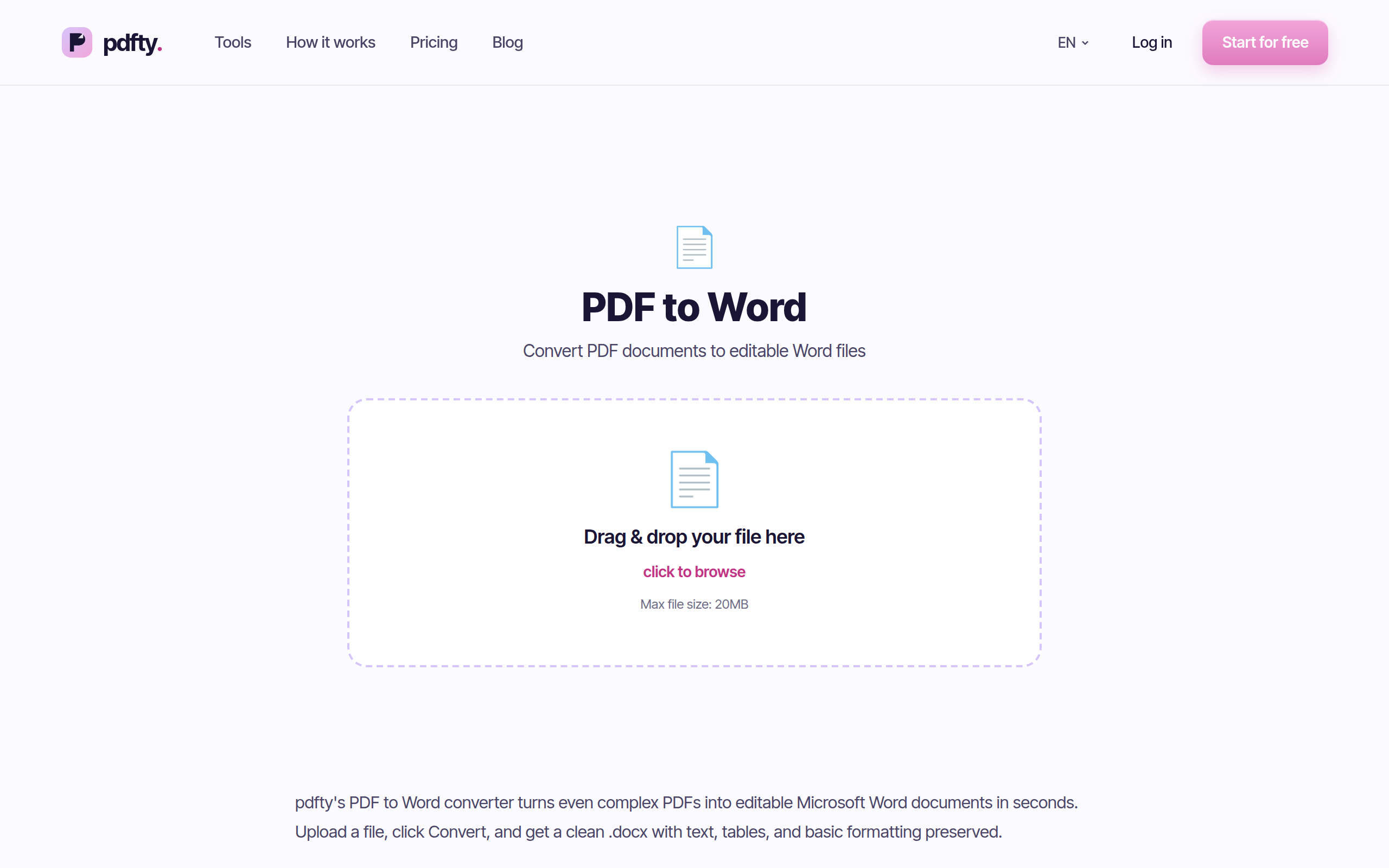
Pros: no account, no watermark, fast, 1-hour auto-delete, and it's part of a ~30-tool suite — so you can run OCR on a scan first, then convert the result.
Cons: free tier caps at 20 MB, 50 pages, 10 operations/day. Multi-column magazines, heavy forms, and design-studio layouts will lose formatting — we'd rather tell you that here than let the download surprise you. Pro is $9/mo if you outgrow the limits.
Best for: everyday documents when you want a clean .docx without
creating yet another account.
Adobe Acrobat online
Adobe's free online converter carries the obvious pedigree: the company that created PDF. In our experience its Word export is among the strongest on complex layouts — though "strongest" still isn't "perfect," and Adobe doesn't claim otherwise.
Pros: excellent fidelity on tricky documents, trustworthy brand, output opens cleanly in Word.
Cons: the free tier allows only a limited number of tasks before pushing a paid plan, and it steers you to sign in with an Adobe account. If you convert more than occasionally, the wall arrives fast — that's the core of our free Adobe Acrobat alternative guide.
Best for: the occasional complex document where fidelity matters more than anything.
Smallpdf
Smallpdf's PDF to Word is as polished as the rest of its suite: drag, drop, download, and the results on typical office documents are solid.
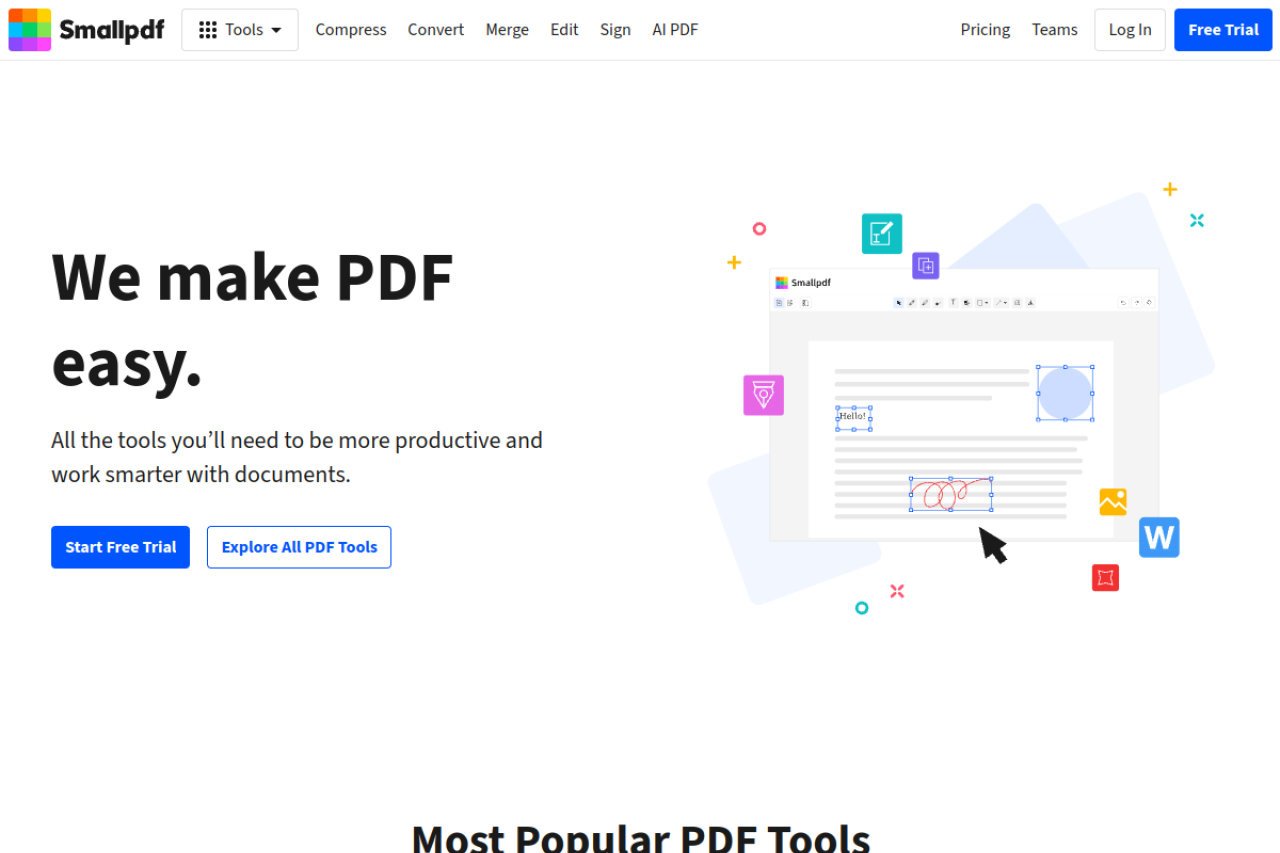
Pros: great UX, reliable output on standard documents, clear flow.
Cons: roughly 2 free tasks per day. Convert one file and compress another, and you're done until tomorrow — rough when a conversion needs a retry. Details in our Smallpdf alternative comparison.
Best for: a single occasional conversion inside a suite you may already pay for.
The Google Docs route
Upload the PDF to Google Drive, open it with Google Docs, then download as
.docx. Completely free, no task limits, works anywhere you have a Google
account.
Pros: free without ceilings, needs no new service, and Google's import even applies rough OCR to scanned pages.
Cons: layout fidelity is the worst of this list. Columns collapse, images jump or vanish, tables come apart, fonts reset. What survives is the text — which is sometimes exactly all you need.
Best for: extracting editable text from a PDF when you'll reformat it yourself anyway.
iLovePDF
iLovePDF rounds out the list with a converter that's free to start and more generous per-day than Smallpdf, inside one of the larger tool suites on the web.
Pros: generous free allowance, handles standard documents well, batch options on paid tiers.
Cons: persistent nudges toward an account, and limits that tighten as files get bigger — see iLovePDF alternative for the fine print.
Best for: regular light conversions if account prompts don't bother you.
Side by side
| Converter | Free limits | Best for |
|---|---|---|
| pdfty PDF to Word | 20 MB, 50 pages, 10 ops/day | Everyday docs, no account |
| Adobe Acrobat online | Limited free tasks, sign-in | Complex layouts, occasional use |
| Smallpdf | ~2 tasks/day | One-off conversions |
| Google Docs | None (Google account) | Text extraction, layout be damned |
| iLovePDF | Generous, account nudges | Regular light use |
Hedged figures are approximate; free tiers change. None of these watermark output.
Which one should you use?
- A contract or report you need to edit today → pdfty PDF to Word; no account, done in a minute.
- A design-heavy or multi-column document → Adobe Acrobat online, and accept the task limit.
- You only want the words, not the layout → Google Docs, free and unlimited.
- A scanned document → OCR first, convert second — any converter fed a raw scan returns images, not editable text. Our free OCR guide covers the first step.
- You just need to fix a typo → converting might be overkill; see how to edit a PDF for lighter options.
Frequently asked questions
What is the most accurate PDF to Word converter?
On complex layouts, Adobe's own converter is generally the reference point — unsurprising, given who built the format. On everyday documents the field is much closer, and pdfty, Smallpdf and iLovePDF all produce cleanly editable results. No converter is 100% faithful on every document.
Why did my converted Word file come out as images?
Your PDF is a scan — each page is a photograph of text, and the converter faithfully carried the photographs across. Run OCR on the file first to add a real text layer, then convert. Our OCR roundup compares free ways to do that.
Can I convert PDF to Word without a watermark?
Yes — every tool in this roundup delivers a clean, watermark-free .docx
on its free tier. Watermarks are a red flag from lower-tier converter
sites, not something you should ever accept for this task.
Is it safe to convert sensitive PDFs online?
Stick to services with automatic deletion — pdfty removes files after 1 hour, and the major suites also delete within hours. For documents that shouldn't touch a server at all, convert locally: recent versions of Microsoft Word can open many PDFs directly, with mixed but offline results.
Why does my converted file look different from the PDF?
Because Word must reflow what PDF froze in place. Fonts get substituted when they aren't installed, columns become sequential text, and precisely positioned elements shift. The simpler the source layout, the closer the match.
Can I convert a PDF to Word for free without signing up?
Yes — pdfty requires no account for up to 10 operations a day, and the Google Docs route needs only the Google account you likely have. Adobe and Smallpdf both push sign-in quickly.
Does converting change the original PDF?
No. Every converter here reads your PDF and writes a separate .docx;
the original file is untouched. Keep it — if the conversion loses
something, the PDF remains your source of truth.
What about PDF to Google Docs instead of Word?
Same route, one step shorter: open the PDF with Google Docs and just stay there. You inherit the same trade-off — excellent for text, unreliable for layout.
The pdfty team builds privacy-first online PDF tools — compress, convert, OCR, sign and protect. Files are deleted within 1 hour. About us →