Best Free PDF Editor in 2026: 5 Honest Picks
Sejda, LibreOffice Draw, PDFescape, Mac Preview and Foxit ranked honestly for free PDF editing — what each can actually change, and where the walls are.

"Best free PDF editor" is a slippery phrase, because editing means two very different things. Some people mean changing existing text — fixing a typo in a contract, updating a price in a brochure. Others mean adding things on top — a signature, a highlight, a filled-in blank. Plenty of tools advertise the first and only do the second.
So here's how we ranked the candidates, and what "best" depends on:
- Can it really edit existing text, or only annotate over it?
- What does the free tier actually allow — file size, tasks, pages?
- Does it watermark the output? (None of our picks do.)
- Browser or desktop, and does that fit how you work?
No affiliate links, and no pretending our own tool wins a category it doesn't compete in. Ranked from strongest free editing down.
Sejda — best free text editing in the browser
Sejda's editor is the rare web tool that lets you click into existing text and retype it in the browser, with no install and no watermark. For the classic "fix one typo before sending" job, it's the best free web answer.
Pros:
- Real in-browser text editing — not just boxes layered on top
- Also handles links, images, form fields and whiteout
- No watermark on output, no install
Cons:
- The free tier allows roughly 3 tasks per hour, with file-size and page caps before it prompts an upgrade
- Complex layouts and unusual fonts can shift after editing — proofread before sending
- It's a per-document workflow; batch editing needs the paid plan
We've compared Sejda's free limits in detail in our Sejda alternative guide — but for text editing, it stays the free-web pick.
LibreOffice Draw — best fully free desktop editor
LibreOffice's Draw module opens PDFs as editable pages: every text block becomes an object you can click into and rewrite, and images and shapes can be moved or deleted. No task limit, no file-size cap, no watermark, no price — the only entry here with genuinely unlimited free editing.
Pros:
- Completely free and offline — files never leave your machine
- Edits text, images and objects with no restrictions
- Runs on Windows, macOS and Linux
Cons:
- The import is a conversion, not native PDF editing: fonts get substituted and layouts can drift, especially on designed documents
- The interface is a drawing app, not a PDF app — expect fiddly text boxes
- You must export back to PDF when done
For a one-page letter or simple report, Draw is excellent; for a designed brochure where every line must stay put, test carefully.
PDFescape — free basic editing and forms in the browser
PDFescape has offered free browser-based editing for years: add or whiteout-and-replace text, insert images and links, fill forms, even create form fields — unusual at the free level.
Pros:
- Free in-browser editing and form tools, no install
- Can create fillable form fields, not just fill them
- No watermark on the free web output
Cons:
- The interface looks and feels dated next to newer tools
- Free tier caps files at roughly 10 MB and 100 pages
- "Editing" existing text is really whiteout-and-retype — matching the original font is on you
It's the pragmatic middle option: more editing than an annotator, fewer limits-per-hour than Sejda, less power than a desktop suite.
Preview (Mac) — annotate and sign, not a text editor
Every Mac ships with Preview, and for a lot of "editing" jobs it's already enough: highlight, add text boxes, draw shapes, insert a signature, rearrange or delete pages, and merge documents.
Pros:
- Preinstalled, free, offline — nothing to upload anywhere
- Excellent for signatures, annotations and page management
- Fast and stable with large files
Cons:
- Cannot edit existing text — you can only white it out and layer a text box over it
- Mac only
- Form support is basic
If your real task is annotating or signing rather than rewriting, Preview may quietly be the best "editor" here — for Mac owners.
Foxit PDF Editor — the paid option, if free won't cut it
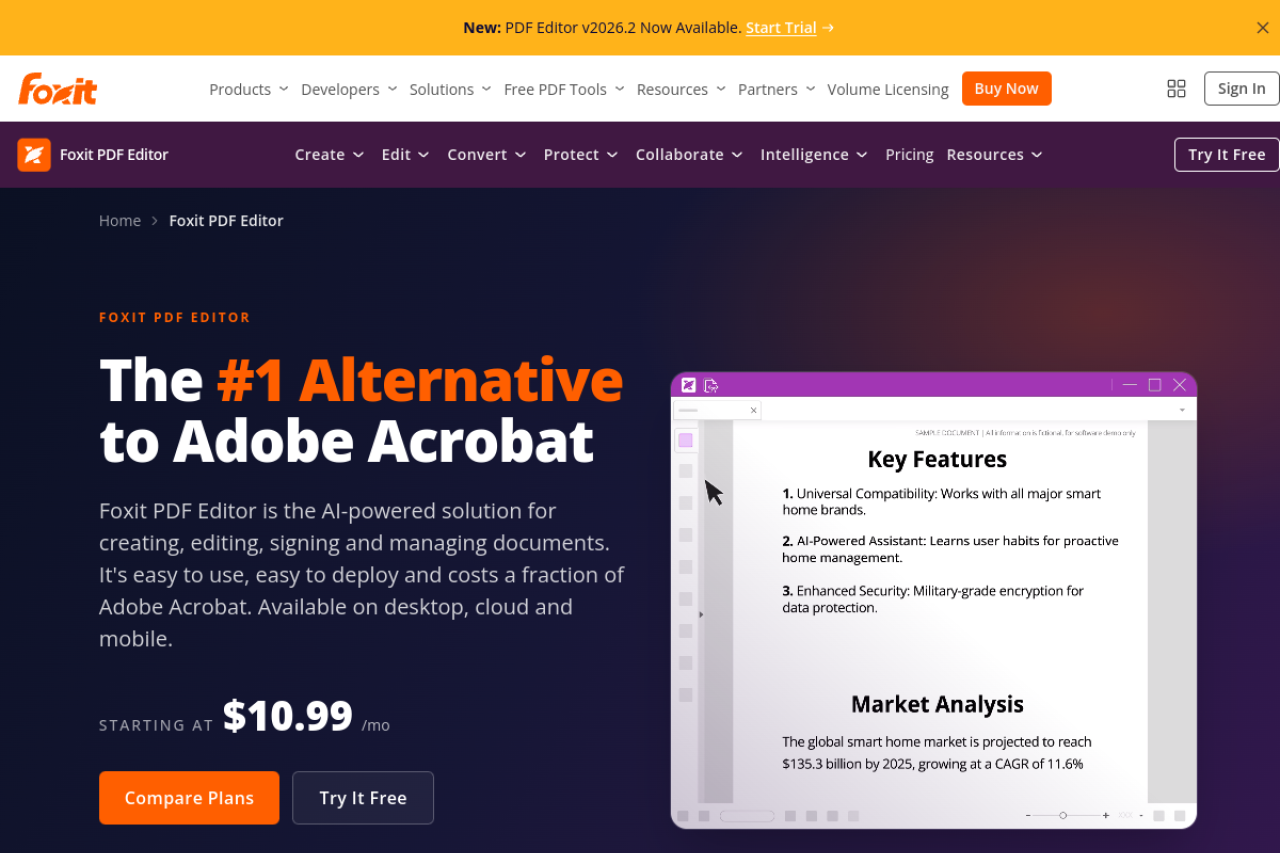
Foxit is the honest answer if you edit PDFs every day: full native text and object editing, OCR-based editing of scans, and none of the layout drift that conversion-based free tools risk. It's a genuine Acrobat rival at a lower price — but it's a paid desktop product, starting around $11/mo depending on plan.
Pros:
- Full professional editing, including scanned documents via OCR
- Reliable layout fidelity on complex files
- Cheaper than Acrobat for comparable everyday features
Cons:
- Not free — the trial ends, and free "Foxit Reader" doesn't edit text
- Desktop install; overkill for occasional one-line fixes
If you're weighing paid suites in general, our free Adobe Acrobat alternatives guide covers that landscape.
Where pdfty fits (honestly: not here)
Full disclosure, since this is our blog: pdfty does not edit PDF text, so it doesn't compete for the crown. It covers the structural side that usually surrounds an edit — merging, splitting, rotating, watermarking, redacting and signing — free in the browser with no sign-up, no watermark, 10 operations/day, 20 MB and 50 pages per file, and files deleted after 1 hour.
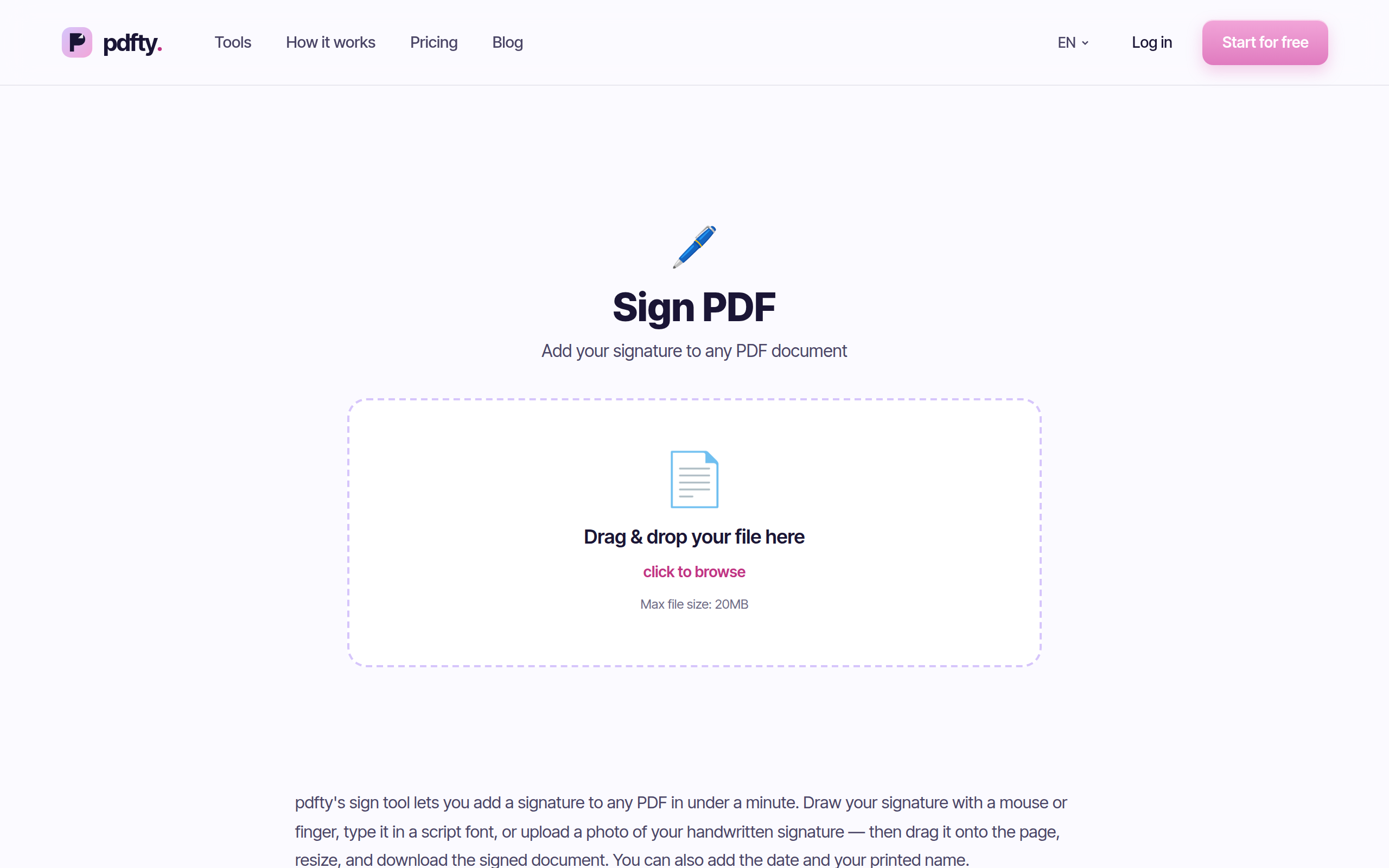
A common real-world combo: fix the text in Sejda or LibreOffice Draw, then sign, watermark or merge the result in pdfty. Walkthrough: how to edit a PDF.
Side by side
| Editor | Free text editing | The catch |
|---|---|---|
| Sejda | Yes — real in-browser editing | ~3 tasks/hour on free tier |
| LibreOffice Draw | Yes — unlimited, via conversion | Clunky UI, layouts can drift |
| PDFescape | Basic — whiteout and retype, forms | Dated UI, ~10 MB / 100 pages |
| Preview (Mac) | No — annotate and sign only | Mac only, no text editing |
| Foxit | Yes — full professional editing | Paid, from around $11/mo |
| pdfty | No — structural tools only | Not a text editor |
Only three of the six actually change existing text — and just one of those is unlimited and free.
Which one should you use?
- One typo, right now, in the browser → Sejda — best free web text editing; budget for the 3-per-hour cap.
- Regular editing, zero budget → LibreOffice Draw. Unlimited and offline; accept the clunk and proofread the layout.
- Light edits plus form work, small files → PDFescape. Fine under ~10 MB if the dated UI doesn't bother you.
- You're on a Mac and mostly annotate or sign → Preview. Don't install anything.
- Daily professional editing → Foxit (paid). Free tools stop being worth the friction at some volume.
- Merging, splitting, signing, watermarking, redacting → not editing — that's where pdfty competes, alongside the field in our best free PDF tools roundup.
Frequently asked questions
What is the best completely free PDF editor?
For unlimited free text editing, LibreOffice Draw — no caps, no watermark, no price, though the workflow is clunky. For occasional in-browser edits, Sejda is smoother but limited to about 3 tasks per hour free.
Can I edit a PDF online for free without a watermark?
Yes. Sejda and PDFescape both edit in the browser without watermarking free output — Sejda with an hourly task cap, PDFescape with a ~10 MB ceiling. Nothing in this roundup stamps watermarks.
How do I edit a PDF without Adobe Acrobat?
Use Sejda (browser, real text editing), LibreOffice Draw (free desktop), or PDFescape (browser, basic edits). Acrobat is the incumbent, not a requirement — our Adobe alternatives guide goes deeper.
Can Mac Preview edit text in a PDF?
No. Preview annotates, signs, fills basic forms and manages pages, but it can't change existing text. The workaround is whiting out a line and layering a text box over it.
Why does my layout break when I edit a PDF?
PDFs store text as positioned fragments with embedded fonts, not a flowing document. Editors that convert the file (like LibreOffice Draw) may substitute fonts and reflow lines; native editors like Foxit minimize this. Always proofread after editing.
Can pdfty edit text in a PDF?
No — and we'd rather say so than stretch the word "edit." pdfty covers merge, split, rotate, watermark, redact, sign and about 30 similar tools, free with no sign-up. For text changes, use Sejda or LibreOffice Draw.
Is Foxit worth paying for?
If you edit PDFs most days, hit free-tier caps weekly, or need scanned documents edited via OCR — probably yes, starting around $11/mo depending on plan. For a few edits a month, the free options above cover it; for the OCR step alone, see the best free OCR for PDFs.
The pdfty team builds privacy-first online PDF tools — compress, convert, OCR, sign and protect. Files are deleted within 1 hour. About us →